This plugin is not supported anymore. A new version of it was released, for free, here. { "lightbox_close": "Close", "lightbox_next": "Next",
This plugin is not supported anymore. A new version of it was released, for free, here.
Author: Hakuen Studio
Introduction
Natively, RPG Maker MV has no option to change the font of your project. Although there is a way to switch manually, it will change the font for the entire game. This plugin enables you to load as many fonts as you like and also gives you the possibility to display different fonts for each window!
Features
• Load as many fonts as you like.
• Load font templates with different styles for quick use within the game.
• You can use different fonts for each window.
• Change fonts within the game with plugin commands or script calls.
How to use
In the plugin parameters, choose the font and your default settings for the game.
Then in the extra fonts parameter, you can add as many fonts as you like. There are two different parameters here:
Font file - Enter the name of the .ttf font file here. Font Face will be how you will reference this font within your project.
Window names - Here you can place the windows that will use this font. You cannot repeat window names in other extra sources.
Unlisted windows will assume the default font for you.
These are the following window names, the standard for RPG Maker MV:
Window_BattleActor • • Window_BattleEnemy
Window_BattleItem • • Window_BattleSkill
Window_PartyCommand • • Window_ActorCommand
Window_BattleLog • • Window_BattleStatus
Window_EquipCommand • • Window_EquipItem
Window_EquipSlot • • Window_EquipStatus
Window_Gold • • Window_Help
Window_ItemCategory • • Window_ItemList
Window_MapName • • Window_Message
Window_NameEdit • • Window_NameInput
Window_NumberInput • • Window_MenuActor
Window_MenuCommand • • Window_MenuStatus
Window_Options • • Window_SkillList
Window_SkillStatus • • Window_SkillType
Window_Status • • Window_SavefileList
Window_EventItem • • Window_GameEnd
Window_ShopBuy • • Window_ShopCommand
Window_ShopNumber • • Window_ShopSell
Window_ShopStatus • • Window_ScrollText
Window_ChoiceList • • Window_TitleCommand
Window_DebugEdit • • Window_DebugRange
If you want to add a font for a non-standard window, you just need to know its name and put it in the parameter field.
These names are case sensitive, so be careful.
You can also use the plugin commands to make changes to the fonts:
FontSize window size
FontColor window color
FontOutWidth window size
FontOutColor window color
FontItalic window true / false
FontFace window name
Examples:
FontSize Window_Message 22
FontFace Window_Message TimerFont
FontColor
#ffffff
FontColor white
FontColor rgba(150_75_45_0.5)
You can also change all properties at once:
FontChangeAll Property Value
Example:
FontChangeAll size 10
* It will change the size of all fonts to 10.
You can also use script calls:
$eliFont.change('Window_Name', 'Property', 'value')
Replace 'Property' with the following values:
size
face
outColor
outWidth
textColor
italic
Examples:
$eliFont.change('Window_Message', 'size', 10)
$eliFont.change('Window_Message', 'textColor', 'rgba(75, 80, 40, 0.5)')
$eliFont.change('Window_Message', italic, true/false)
Update Log
Version 1.1.2 - 10/19/2021
- Fixed a problem where deployed games were not loading the fonts.
- Improved the plugin parameter to set the window names for each font.
Version 1.1.1 - 10/08/2021
- Yep_BattleCoreEngine compatibility fix.
Version 1.1.0 - 08/22/2020
- Code restructuring.
Version 1.0.0 - 08/17/2020
- Plugin release!
Terms of Use https://www.hakuenstudio.com/rpg-maker/terms-of-use DOWNLOAD Eli_FontManager.jsUpdate Log







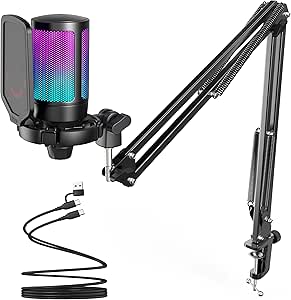 FIFINE Gaming USB Microphone Kit with Boom Arm
USB microphone setup for streams, party chat, podcasts, and creator clips.
View on Amazon
FIFINE Gaming USB Microphone Kit with Boom Arm
USB microphone setup for streams, party chat, podcasts, and creator clips.
View on Amazon