In-Game Manual by Atreyo RayIntroduction Allows you to create a scene that works like an in-game manual, and reads its contents from a text file. - You can create multiple manuals. (*new*)
In-Game Manual
by Atreyo Ray
Introduction
Allows you to create a scene that works like an in-game manual, and reads its contents from a text file.
Features
- You can create multiple manuals. (*new*)
- You can show and hide entries using plugin commands. (*new*)
- Offers LOADS of visual customization.
- Setup difficulty varies from easy to medium-hard, depending on the amount of customization you plan to use.
- You can change the background.
- You can load it with a simple Script or Plugin Command, or include it in the Main Menu.
- There are 3 windows in the Scene:
* Entry List Window:
[IMG]http://i.imgur.com/9rBJLsht.png[/IMG]
- Lists current manual entries.
- You can set subentries for each entry, so that when you press OK or click the entry, it will show its subentries instead.
- You can use individual icons for each entry.
- You can set the font (including size, color, and outline color).
- You can set its position (left or right).
- You can set its width.
- You can change its windowskin.
* Navigation Window:
[IMG]http://i.imgur.com/vn1kpfcm.png[/IMG]
- Shows you how far you are in the manuals entries chain (along with listing previous ones).
- You can set the color of the current entry.
- You can set the color of the previous entries.
- You can set the separator to whatever you prefer.
- You can set the font (including size and outline color).
- You can change its position (top or bottom).
- You can disable (hide) it.
- You can change its windowskin.
* Details Window:
[IMG]http://i.imgur.com/2aeP834m.png[/IMG]
- Shows the title of the entry (may be different from the name of the entry).
- You can change the title's font (including size, italic, color, and outline color).
- Shows a gradient line below the title that covers 2/3 of the Details Window.
- You can change the colors of this line.
- Shows an information text telling the user if there are subentries to this entry.
- You can change this information text.
- You can change this information text position (center, left, or right).
- You can chance this information text font (including size, color, and outline color).
- Shows a picture set to the entry.
- You can change this picture position (center, left, or right).
- You can have the details text be shown over the image or after it.
- Shows the details text set to the entry.
- You can include escape characters to the text (\c[1] or \i[30], for example).
- You can set the details text font (including size and outline color).
- You can change this window skin.
Screenshots
Standard Game Manual on a 1280x720 resolution:
[IMG]http://i.imgur.com/78cqQMJl.png[/IMG]
Fully customized:
[IMG]http://i.imgur.com/Se65FQwh.png[/IMG]
An example of an entry in the text file:
[IMG]http://i.imgur.com/kmb1kcHl.png[/IMG]
That can be shown like this:
[IMG]http://i.imgur.com/gqWK4dZl.png[/IMG]
How to Use
#ff0000">Please dowload and read the tutorial to learn how to create your in-game manual:
Dropbox or attached to this post.
To learn how to install a plugin:
https://youtu.be/ym_qA6hO5d0 (by Yanfly)
To have an idea on how to make a custom background (if you want to use one), watch this video by Echo607
https://youtu.be/2MGzdXs9pzk
Any other instruction can be found in the help of the plugin.
Download
Dropbox
or attached to this post.
FAQ
Q: Can you implement *what I want or add a functionality*?
A: Well, if it's something that might be of interest to a number of other people, AND is still on the purpose of the plugin, AND it's easy to implement (i.e. takes little time to do) I MIGHT do it.
Otherwise, you're free to try modifying the code to suit your needs (or ask someone else to do so). Anyway, asking for it never hurts.
Q: Can I use this plugin for anything else that is not a manual?
A: Yes, of course!
Q: There's something wrong with my manual/I'm getting an error. What should I do?
A: Unless you've found a bug, there's a very high chance that the problem is with your Manual.txt file. Please send me a copy of it so I can check it for you.
Credit
- Please credit me (Atreyo Ray) for this plugin.
- You're free to use it on free or commercial games.
Author's Notes
- You're free to modify this plugin or improve it.
- The "handwriting" font that appears on some the screenshots is called Parisienne (under SIL OPEN FONT LICENSE at Google Fonts).
- Please tell me if you have any questions.
Change log
v1.00 - First release (Nov, 27, 2015)
v1.10 - (Dec, 02, 2015)
- You don't need to write down tags you'll not use in an entry.
- You can now indent comments (#) in your manual data file.
- You can now create multiple manuals.
- You can now hide and show entries using Plugin Commands.
- A detailed illustrated tutorial now comes with the plugin.
- Removed 'Manual Name' parameter.
- Added 'Manual Names' parameter.
- Changed how 'Show in Menu' parameter works.
ARP_InGameManual.zip



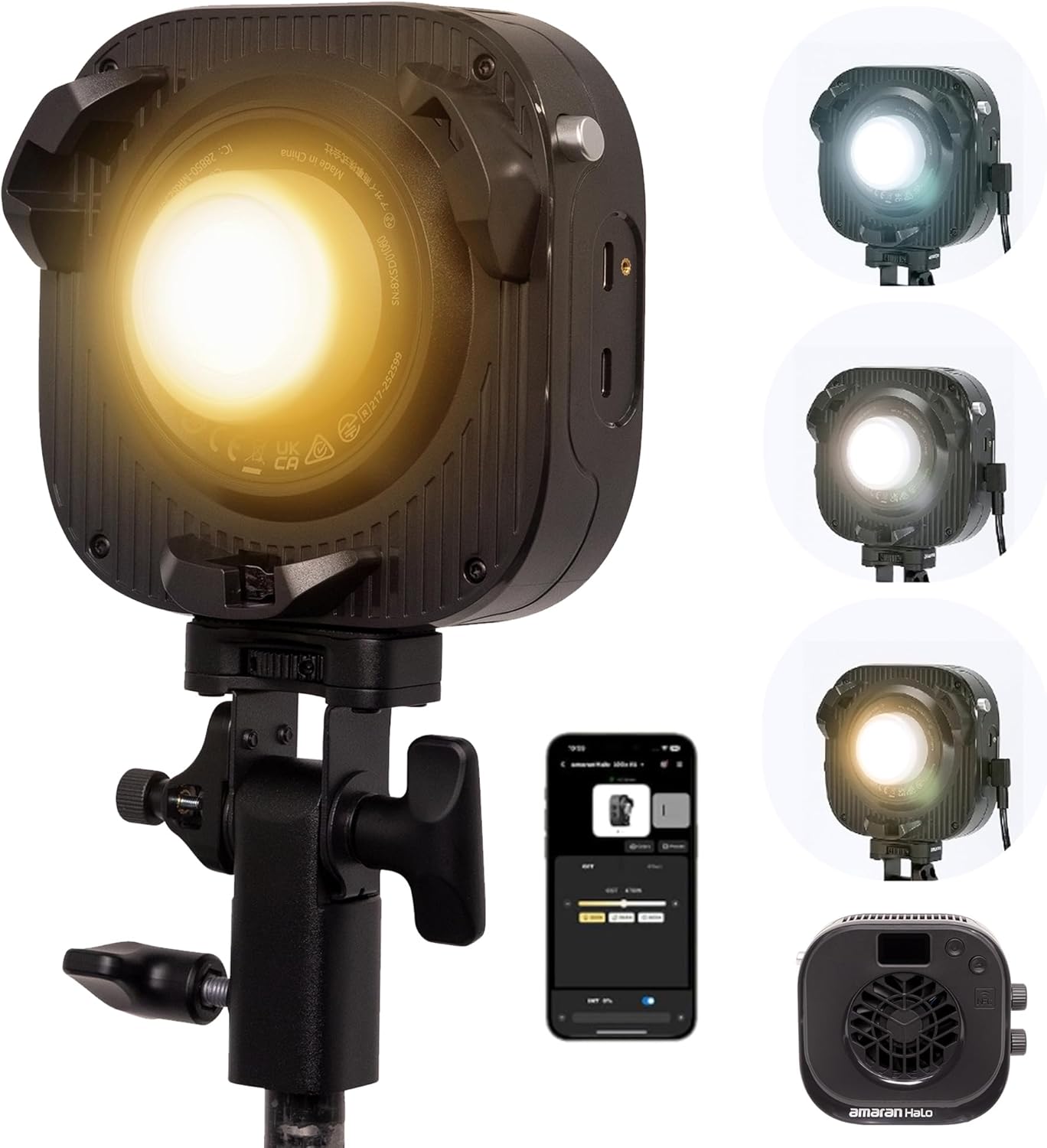 Amaran Halo 100X COB LED Video Light
Compact bi-color studio light for YouTube, TikTok, product shots, and live streaming.
View on Amazon
Amaran Halo 100X COB LED Video Light
Compact bi-color studio light for YouTube, TikTok, product shots, and live streaming.
View on Amazon