public

Rpg Maker Developers Group

Simple enough for a child, powerful enough for a developer

2 Followers
Preserved forum archive. This topic stores the original first post and locally mirrored RPG Maker Web attachments when available. It is posted by the BMMPlay archive account, not by the original creator.

Original Source

  • Original title: Settings Menu
  • Original author: Holy87
  • Original date: August 13, 2015
  • Source thread: https://forums.rpgmakerweb.com/threads/settings-menu.43612/
  • Source forum path: Game Development Engines > Ruby Game System (RGSS) Scripts > RGSS3 Scripts (RMVX Ace)

Summary

{ "lightbox_close": "Close", "lightbox_next": "Next", "lightbox_previous": "Previous",

Archived First Post

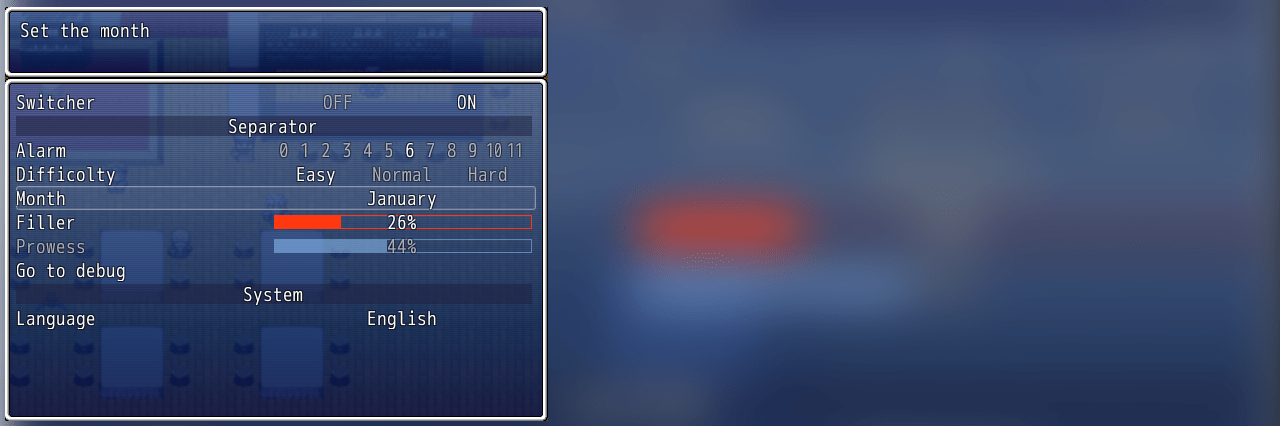
options.png
Settings Menu
v1.1, by Holy87

Features

This Settings Menu is different from the others, because it comes with no options, but it is full-modular and full-customizable both from the user and the other scripters, in the easiest way possible.

Users can create game options from variables, switches and lunatic modes (code scirpt)

Scripters can integrate their script in this settings menu to implement custom options (battle system options, internet options, etc...)

What options you can make?

  • ON/OFF options for switches
  • Variables, to make options with multiple states (switching with left and right buttons)
  • Variables selected by popups, when the states are too much to show all in a single line
  • Variables selected by gauges, that also include switches if press ENTER
  • Separators, to separate settings categories
What can I use?

  • Game Switches and Variables
  • Universal data stored in $game_settings class (see my support module)
  • script for lunatic mode
  • Custom popup windows and effects
You can also choice if show the settings menu in the Scene_Title, Scene_Menu or in both scenes.

How to Use

Adding options to the list is simple, and you can do it in the script configuration or from methods. All you have to do is to insert hash with datas in the ELEMENTS array, in the configuration section of the script. Let's see some examples.

To add separators

{:type => :separator, :text => "This is a separator"}To add switch options

{:type => :switch, :text => "Option name", :sw => 10, n => "ON", ff => "OFF", :help => "Activates the option"}Text is the showed text, :sw the Switch ID, n and ff the options showed and :help the text showed in the help window.

switch1.png


To add a variable option

{:type => :variable, :text => "Option name", :var => 2, :max => 5, :help => "Change the option value"}where :var is the variable ID and :max the max value. So we have an option where we can select 0,1,2,3,4 or 5.

variable.png


What if we want custom values?

You can use this code

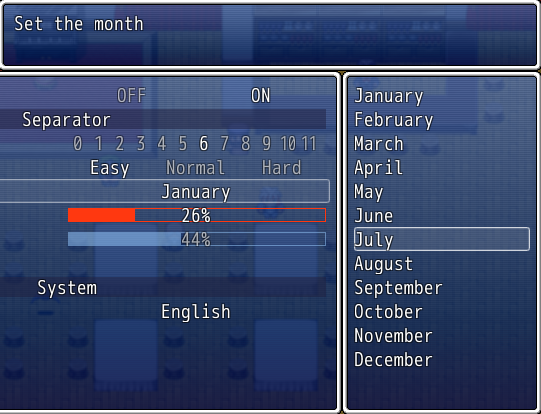
{:type => :variable, :text => "Difficulty", :var => 5,:help => "Set up the game difficulty.",:values => ["Easy", "Normal", "Hard", "Extreme"] }Where values are all the values showed. If there are too many values to show in a single line, you can add another attribute :use_popu => true to force to show popup. Then, pressing the action button, the values are shown like this:

screenshot_2.png


Lunatic settings

Global options: If you set a switch ID or variable not like an integer number, but as
a string or a symbol, the option is seen like global and will be saved in $game_settings.
You can enable or disable the options in 2 ways:

  • $game_system.option_enable(tag, true/false) enables or disables the game option, using this code in a call script or other scripts.
  • The <tag> parameter is the option tag defined in the option configuration tag => ption_name) using :condition => "condition" in the option configuration. For example, :condition => "$game_switches[55] == true" will allow the option only if the switch 55 is true
Setting the type as :advanced, it will be executed a code when the player press enter on him. Example:
{:type => :advanced, method => :change_scene}Then you may define the change_scene method in the Option class:

Code:
class Option  def change_scene    SceneManager.call(My_Scene)  endend


For 3rd party scripters

It is useful to scripters to add game options to proper scripts directly in this
settings menu, instead of creating apart.For the scripters, I've created 8 categories where insert your options:

  • Generic, the same part defined by the user (as no category)
  • Appearance, like themes and wallpapers
  • Audio, for music and sounds
  • Game, for game options like battle speed and difficulty level
  • Graphic, like screen resolution and special effects
  • Commands, for game controls
  • System, for techincal configurations
  • Internet, for the online functionalities
The categories will have a dedicated separator automatically inserted (all but the generic category).

To add an option in those categories, for every option you may pass the hash (defined like the previous options) in the respective methods:

if $imported["H87_Options"]

to check if the script exists in the project, then use:

Code:
H87Options.push_system_option(hash)H87Options.push_generic_option(hash)H87Options.push_game_option(hash)H87Options.push_graphic_option(hash)H87Options.push_sound_option(hash)H87Options.push_appearance_option(hash)H87Options.push_keys_option(hash)H87Options.push_internet_option(hash)

to add the option in the settings menu.

Download

Core script: Download from Github or my blog.

Windowskin plugin: Coming soon

Audio plugin: Coming soon

Difficulty plugin: Coming soon

FAQ

Q: Can I use this script for my commercial project?

A: Yes, you can. all my scripts are distributed under CC-BY license. You just have to credit me.

Q: What if I find some bugs?

A: You can post a request here or, if you have also the fix, pull a commit on github and I will add it into the main branch.

Q: What if I make a plugin for this script?

A: You can post it in this topic and I will add it into the first post and in my blog.

Features Mentioned

  • This Settings Menu is different from the others, because it comes with no options, but it is full-modular and full-customizable both from the user and the other scripters, in the easiest way possible.
  • Users can create game options from variables, switches and lunatic modes (code scirpt)
  • Scripters can integrate their script in this settings menu to implement custom options (battle system options, internet options, etc...)
  • What options you can make?
  • ON/OFF options for switches
  • Variables, to make options with multiple states (switching with left and right buttons)
  • Variables selected by popups, when the states are too much to show all in a single line
  • Variables selected by gauges, that also include switches if press ENTER
  • Separators, to separate settings categories
  • What can I use?
  • Game Switches and Variables
  • Universal data stored in $game_settings class (see my support module)
  • script for lunatic mode
  • Custom popup windows and effects
  • You can also choice if show the settings menu in the Scene_Title, Scene_Menu or in both scenes.

Downloads / Referenced Files

Log in to download

Log in, then follow the RPG Maker Developers Group to see these download links.

Log in to download

License / Terms Note

Q: Can I use this script for my commercial project? A: Yes, you can. all my scripts are distributed under CC-BY license. You just have to credit me. Q: What if I find some bugs? A: You can post a request here or, if you have also the fix, pull a commit on github and I will add it into the main branch.

Referenced Images / Attachments

options.png
options.png
switch1.png
switch1.png
variable.png
variable.png
screenshot_2.png
screenshot_2.png
Creator Claims / Removal

If you are the original creator and want this listing reassigned, edited, or removed, join BMMPlay and contact the moderators with proof that matches the original RPG Maker Web profile, linked GitHub, itch.io page, or another public creator identity.

#rgss3#script-archive

Replies (0)

No replies yet.

0 replies 1 view

Log in to reply.

User Avatar