Preserved forum archive. This topic stores the original first post and locally mirrored RPG Maker Web attachments when available. It is posted by the BMMPlay archive account, not by the original creator.
Original Source
- Original title: MZ Phillys Plugin Collection
- Original author: Philly
- Original date: February 7, 2026
- Source thread: https://forums.rpgmakerweb.com/threads/phillys-plugin-collection.182321/
- Source forum path: Game Development Engines > RPG Maker Javascript Plugins > JS Plugin Releases (RMMZ)
Summary
Contains all plugins I have ever created. For Free. - Actor Based GameOver MZ Spoiler: Info This plugin changes the Game Over image based on which actors are in the party.
Archived First Post
Contains all plugins I have ever created. For Free.
- Actor Based GameOver MZ
- Bonus Damage Types Plugin
- No Menu Control MZ
- Philly's Custom Item Sound Plugin
- Philly's Event Pop Up Plugin
- Philly's Map Overlay Plugin
- Phillys MapIconDisplay Plugin
kento-games.itch.io
All plugins are free and may also be used for commercial projects. Please note the EULA in the folder.
- Actor Based GameOver MZ
This plugin changes the Game Over image based on which actors are in the party.
INSTRUCTIONS:
1) Place your Game Over images in the system folder (img/system/),
e.g. "GameOver_Actor1.png", "GameOver_Actor2.png", etc.
2) In the parameters, set which actor ID should display which image.
3) If multiple actors are in the party, by default the image of the
first matching actor in the list below will be used.
INSTRUCTIONS:
1) Place your Game Over images in the system folder (img/system/),
e.g. "GameOver_Actor1.png", "GameOver_Actor2.png", etc.
2) In the parameters, set which actor ID should display which image.
3) If multiple actors are in the party, by default the image of the
first matching actor in the list below will be used.
- Bonus Damage Types Plugin
Protected download
Protected download
Protected download
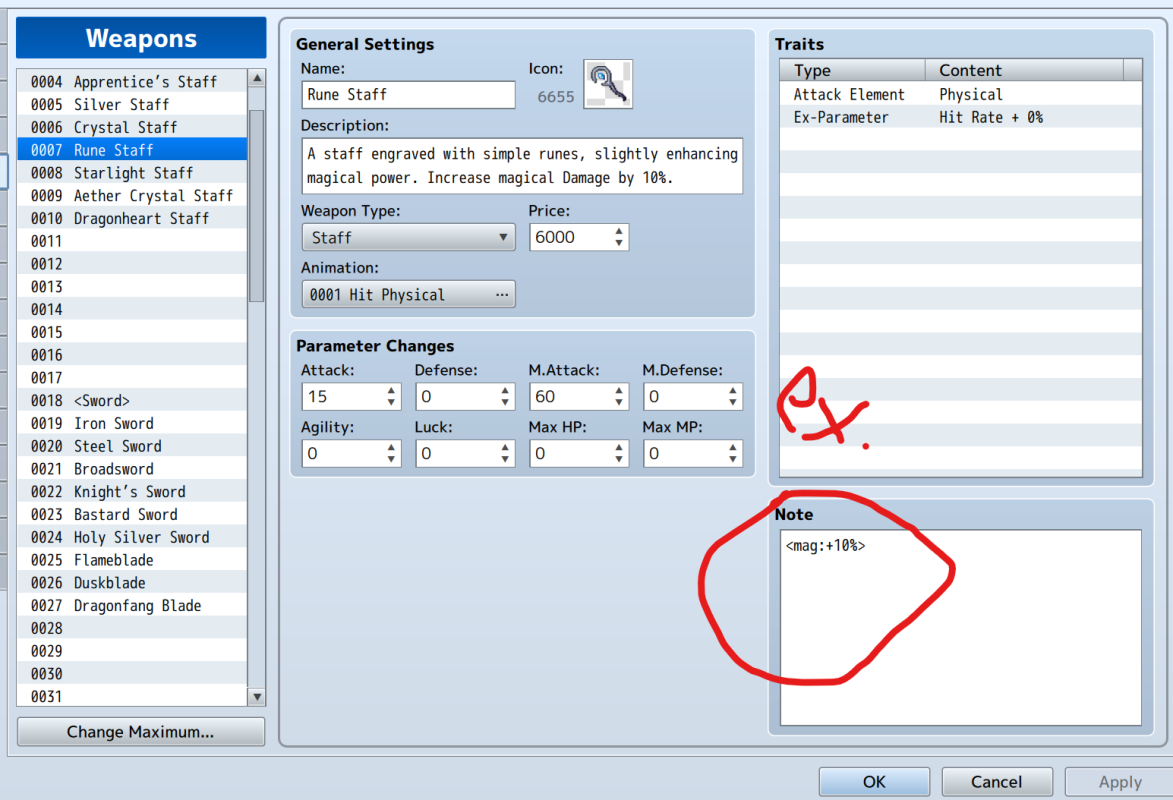
This plugin enables you to define bonus damage for certain attack types
(physical, magical, or guaranteed "Certain" hits) using Notetags.
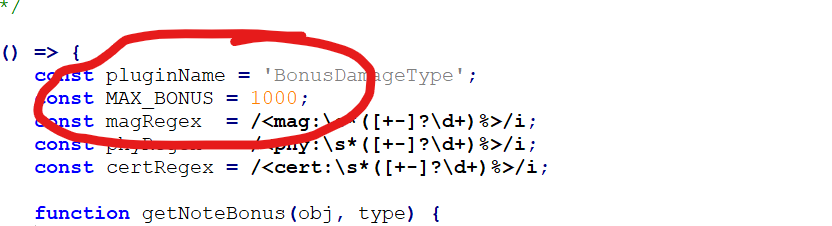
Note: Bonus is limited to a maximum of +1000%. You can easily change the maximum damage bonus yourself in the plugin.
Notetags Exampels (apply to Weapons, Armors, States, or Items):
<mag: +20%> // Magical attacks deal 20% more damage
<phy: -10%> // Physical attacks deal 10% less damage
<cert: +40%> // Certain-Hits deal 40% more damage
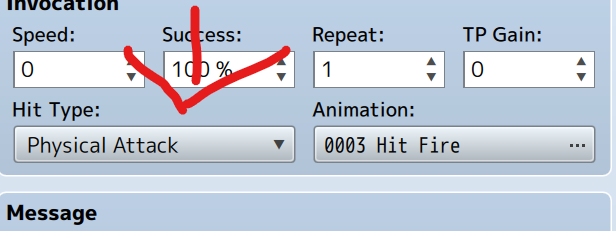
Hit Type mapping:
Certain (hitType === 0)
Physical (hitType === 1)
Magical (hitType === 2)
Multiple Notetags stack additively. Negative values subtract from the bonus.
Protected download
Protected download
This plugin enables you to define bonus damage for certain attack types
(physical, magical, or guaranteed "Certain" hits) using Notetags.
Note: Bonus is limited to a maximum of +1000%. You can easily change the maximum damage bonus yourself in the plugin.
Notetags Exampels (apply to Weapons, Armors, States, or Items):
<mag: +20%> // Magical attacks deal 20% more damage
<phy: -10%> // Physical attacks deal 10% less damage
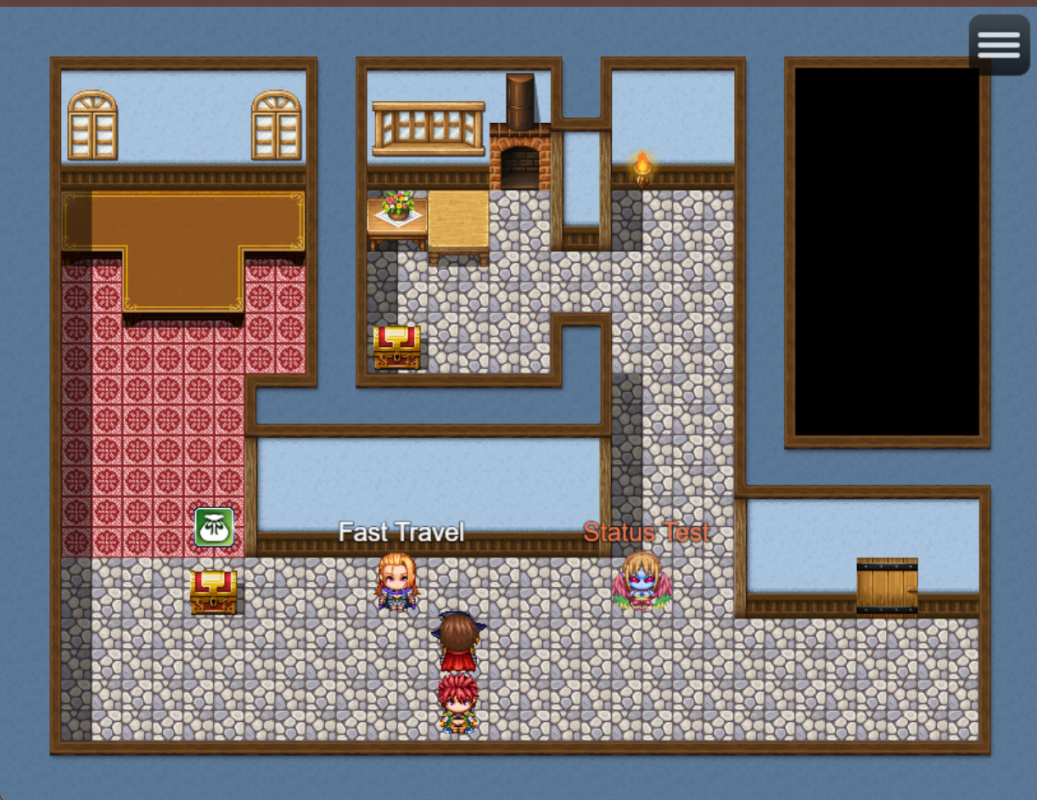
<cert: +40%> // Certain-Hits deal 40% more damage
Hit Type mapping:
Certain (hitType === 0)
Physical (hitType === 1)
Magical (hitType === 2)
Multiple Notetags stack additively. Negative values subtract from the bonus.
- No Menu Control MZ
This plugin allows you to dynamically disable and enable the menu through plugin commands.
Plugin Commands:
1. EnableMenu
Allows the menu to be opened again.
2. DisableMenu
Prevents the menu from being opened
. Example:
Plugin Command: NoMenuControl -> DisableMenu
=> The menu is locked.
Plugin Command: NoMenuControl -> EnableMenu
=> The menu is unlocked.
Plugin Commands:
1. EnableMenu
Allows the menu to be opened again.
2. DisableMenu
Prevents the menu from being opened
. Example:
Plugin Command: NoMenuControl -> DisableMenu
=> The menu is locked.
Plugin Command: NoMenuControl -> EnableMenu
=> The menu is unlocked.
- Philly's Custom Item Sound Plugin
[RPG Maker MZ Plugin]
Free Version:
This plugin allows you to play a custom sound effect when using an item.You can also adjust the volume and pitch of the sound.
Add the following Notetags to the item's Note field:
<sfx: soundname>
<sfxVolume: volume>
<sfxPitch: pitch>
- Replace "soundname" with the name of the sound file from the "audio/se" folder.
- "volume" is a value between 0 and 100 (default: 90).
- "pitch" is a value between 50 and 150 (default: 100).
- Ensure the sound file exists in "audio/se".
Example:
<sfx: HealSound>
<sfxVolume: 80>
<sfxPitch: 120>
This will play "HealSound.ogg" with 80% volume and a pitch of 120.
If no Notetags are present, the default sound effect will play.
Pro Version:
The Pro version contains three new features. The Pro version may also be used in commercial projects.
Add the following Notetags to the item's Note field:
<sfx: soundname> - Plays a specific sound.
<sfxVolume: volume> - Volume (0-100, default: 90).
<sfxPitch: pitch> - Pitch (50-150, default: 100).
<sfxPan: pan> - Pan (-100 to 100, default: 0).
<sfxRandom: sound1, sound2,...> - Plays a random sound from the list.
<sfxState: stateId, soundname> - Plays a sound if the target has a specific state.
Example:
<sfx: HealSound>
<sfxVolume: 80>
<sfxPitch: 120>
<sfxPan: -50>
<sfxRandom: SoundA, SoundB>
<sfxState: 5, PoisonSound>
This will:
- Play "HealSound.ogg" with 80% volume, a pitch of 120, and pan set to -50.
- Randomly play "SoundA.ogg" or "SoundB.ogg".
- Play "PoisonSound.ogg" if the target has state ID 5.
If no Notetags are present, the default sound effect will play.
Free Version:
This plugin allows you to play a custom sound effect when using an item.You can also adjust the volume and pitch of the sound.
Add the following Notetags to the item's Note field:
<sfx: soundname>
<sfxVolume: volume>
<sfxPitch: pitch>
- Replace "soundname" with the name of the sound file from the "audio/se" folder.
- "volume" is a value between 0 and 100 (default: 90).
- "pitch" is a value between 50 and 150 (default: 100).
- Ensure the sound file exists in "audio/se".
Example:
<sfx: HealSound>
<sfxVolume: 80>
<sfxPitch: 120>
This will play "HealSound.ogg" with 80% volume and a pitch of 120.
If no Notetags are present, the default sound effect will play.
Pro Version:
The Pro version contains three new features. The Pro version may also be used in commercial projects.
Add the following Notetags to the item's Note field:
<sfx: soundname> - Plays a specific sound.
<sfxVolume: volume> - Volume (0-100, default: 90).
<sfxPitch: pitch> - Pitch (50-150, default: 100).
<sfxPan: pan> - Pan (-100 to 100, default: 0).
<sfxRandom: sound1, sound2,...> - Plays a random sound from the list.
<sfxState: stateId, soundname> - Plays a sound if the target has a specific state.
Example:
<sfx: HealSound>
<sfxVolume: 80>
<sfxPitch: 120>
<sfxPan: -50>
<sfxRandom: SoundA, SoundB>
<sfxState: 5, PoisonSound>
This will:
- Play "HealSound.ogg" with 80% volume, a pitch of 120, and pan set to -50.
- Randomly play "SoundA.ogg" or "SoundB.ogg".
- Play "PoisonSound.ogg" if the target has state ID 5.
If no Notetags are present, the default sound effect will play.
- Philly's Event Pop Up Plugin
Protected download
This plugin lets you display text or icons above events when the player is
within a specified tile range. It also supports:
- A simple fade-in/fade-out effect when the player enters/leaves range.
- Optional text color configuration (hex or color index).
----------------------------------------------------------------------------
NOTETAGS FOR EVENTS
----------------------------------------------------------------------------
<text: YourText> Shows "YourText" as a text pop-up above the event.
<icon: x> Shows the icon with ID x (from your IconSet).
<range: x> Overrides the default range for this specific event.
<color: y> Sets the text color. y can be either:
- A hex code like "#ff0000"
- A number referencing RPG Maker MZ’s color index, e.g. "2"
uses ColorManager.textColor(2)
Example notetags:
<text: Danger!>
<color: #ff0000>
<range: 4>
or
<text: Warning!>
<color: 2>
----------------------------------------------------------------------------
HOW IT WORKS
----------------------------------------------------------------------------
1. If <range: ...> is not found, the plugin uses the Default Range specified
in the plugin parameters.
2. The font size is defined by the "Font Size" parameter.
3. The plugin calculates tile-based distance using RPG Maker MZ's default
distance formula (diagonal movement included).
4. The fade-in/fade-out uses a simple opacity change each frame. Once the
player is within range, the pop-up fades in; when they leave range, it
fades out.
5. If <color: ...> is given, text is drawn in that color. If no color is
specified, the text defaults to white (#ffffff).
This plugin lets you display text or icons above events when the player is
within a specified tile range. It also supports:
- A simple fade-in/fade-out effect when the player enters/leaves range.
- Optional text color configuration (hex or color index).
----------------------------------------------------------------------------
NOTETAGS FOR EVENTS
----------------------------------------------------------------------------
<text: YourText> Shows "YourText" as a text pop-up above the event.
<icon: x> Shows the icon with ID x (from your IconSet).
<range: x> Overrides the default range for this specific event.
<color: y> Sets the text color. y can be either:
- A hex code like "#ff0000"
- A number referencing RPG Maker MZ’s color index, e.g. "2"
uses ColorManager.textColor(2)
Example notetags:
<text: Danger!>
<color: #ff0000>
<range: 4>
or
<text: Warning!>
<color: 2>
----------------------------------------------------------------------------
HOW IT WORKS
----------------------------------------------------------------------------
1. If <range: ...> is not found, the plugin uses the Default Range specified
in the plugin parameters.
2. The font size is defined by the "Font Size" parameter.
3. The plugin calculates tile-based distance using RPG Maker MZ's default
distance formula (diagonal movement included).
4. The fade-in/fade-out uses a simple opacity change each frame. Once the
player is within range, the pop-up fades in; when they leave range, it
fades out.
5. If <color: ...> is given, text is drawn in that color. If no color is
specified, the text defaults to white (#ffffff).
- Philly's Map Overlay Plugin
Protected download
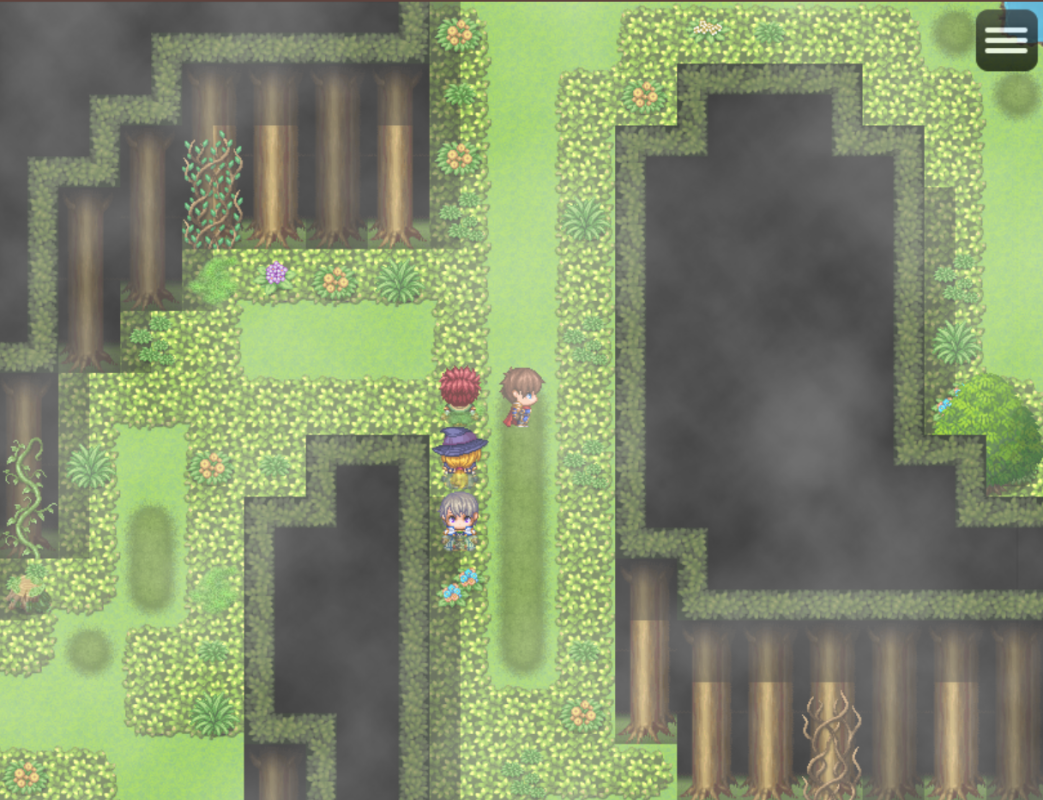
This plugin allows you to add overlays like fog, shadows, or lighting
to your maps by defining them in the map's Note field.
How to use:
1. Add the following tags to the Note field of a map:
<Overlay: filename opacity scrollX scrollY>
- filename: The name of the image file (without extension) in the /img/parallaxes folder.
- opacity: The opacity of the overlay (0-255).
- scrollX: Horizontal scrolling speed (default: 0).
- scrollY: Vertical scrolling speed (default: 0).
Example:
<Overlay: fog1 128 0.5 0>
This will display the image "fog1.png" at 50% opacity, scrolling horizontally at 0.5 speed.
This plugin allows you to add overlays like fog, shadows, or lighting
to your maps by defining them in the map's Note field.
How to use:
1. Add the following tags to the Note field of a map:
<Overlay: filename opacity scrollX scrollY>
- filename: The name of the image file (without extension) in the /img/parallaxes folder.
- opacity: The opacity of the overlay (0-255).
- scrollX: Horizontal scrolling speed (default: 0).
- scrollY: Vertical scrolling speed (default: 0).
Example:
<Overlay: fog1 128 0.5 0>
This will display the image "fog1.png" at 50% opacity, scrolling horizontally at 0.5 speed.
- Phillys MapIconDisplay Plugin
The MapIconDisplay plugin for RPG Maker MZ allows you to display icons on the map that are positioned relative to specific events. These icons are defined using entries in the event's note field, making it simple to add visual indicators or decorations directly onto the map.
<MapIcon: 64 16 -16>
Plugin Description
The MapIconDisplay plugin for RPG Maker MZ allows you to display icons on the map that are positioned relative to specific events. These icons are defined using entries in the event's note field, making it simple to add visual indicators or decorations directly onto the map.How To - Instructions for Use
- Install the Plugin:
- Save the plugin as a .js file (e.g., MapIconDisplay.js).
- Copy the file into the js/plugins folder of your RPG Maker MZ project.
- Open the Plugin Manager in RPG Maker MZ and activate the plugin.
- Display an Icon on an Event:
- Open the event where you want to display an icon.
- Go to the Note field (top-right corner in the event editor window).
- Add the following tag: <MapIcon: ID X Y>
- Y: Optional vertical offset in pixels (default: 0).
- X: Optional horizontal offset in pixels (default: 0).
- ID: The ID of the icon from the icon set (refer to the icon editor in RPG Maker for the IDs).
<MapIcon: 64 16 -16>
- This example displays the icon with ID 64, offset 16 pixels to the right and 16 pixels up.
- Test Your Game:
- Save your changes and run the game to see the icon displayed at the specified event.
More Examples
- Icon directly above the event:<MapIcon: 128>
Displays the icon with ID 128 without any additional offset. - Icon shifted upwards and to the left:<MapIcon: 64 -20 -30>
Displays the icon with ID 64, shifted 20 pixels to the left and 30 pixels upward.
Notes
- The plugin uses the event's note field, allowing multiple tags for different events to be managed easily.
- If the icons are not displaying, check the following:
- Ensure the icon ID exists in the icon set.
- Verify the syntax of the note field tag.
- Confirm that the plugin is activated in the Plugin Manager.
Phillys Plugin Collection by Philly
A collection of RPG Maker MZ Plugins
kento-games.itch.io
All plugins are free and may also be used for commercial projects. Please note the EULA in the folder.
Downloads / Referenced Files
Log in to download
Log in, then follow the RPG Maker Developers Group to see these download links.
Log in to downloadLicense / Terms Note
The Pro version contains three new features. The Pro version may also be used in commercial projects. Add the following Notetags to the item's Note field: - Plays a specific sound. - Volume (0-100, default: 90).
Referenced Images / Attachments
Creator Claims / Removal
If you are the original creator and want this listing reassigned, edited, or removed, join BMMPlay and contact the moderators with proof that matches the original RPG Maker Web profile, linked GitHub, itch.io page, or another public creator identity.
Replies (0)
No replies yet.
0
replies
1
view
Topic Summary
Loading summary...