MZFLOATEXT ADVANCED (MZ) - Custom Event Text Windows
BMM_Archive · July 15, 2026

Preserved forum archive. This topic stores the original first post and locally mirrored RPG Maker Web attachments when available. It is posted by the BMMPlay archive account, not by the original creator.
Original Source
- Original title: FLOATEXT ADVANCED (MZ) - Custom Event Text Windows
- Original author: Narch
- Original date: August 29, 2025
- Source thread: https://forums.rpgmakerweb.com/threads/floatext-advanced-mz-custom-event-text-windows.179837/
- Source forum path: Game Development Engines > RPG Maker Javascript Plugins > JS Plugin Releases (RMMZ)
Summary
FLOATEXT ADVANCED - Version 1.0 Welded Bones Games Introduction The FLOATEXT ADVANCED plugin displays formatted text above map events.
Archived First Post
FLOATEXT ADVANCED - Version 1.0
Welded Bones Games
Welded Bones Games
Introduction
The FLOATEXT ADVANCED plugin displays formatted text above map events.
It supports block-wide settings and inline styling for precise control.
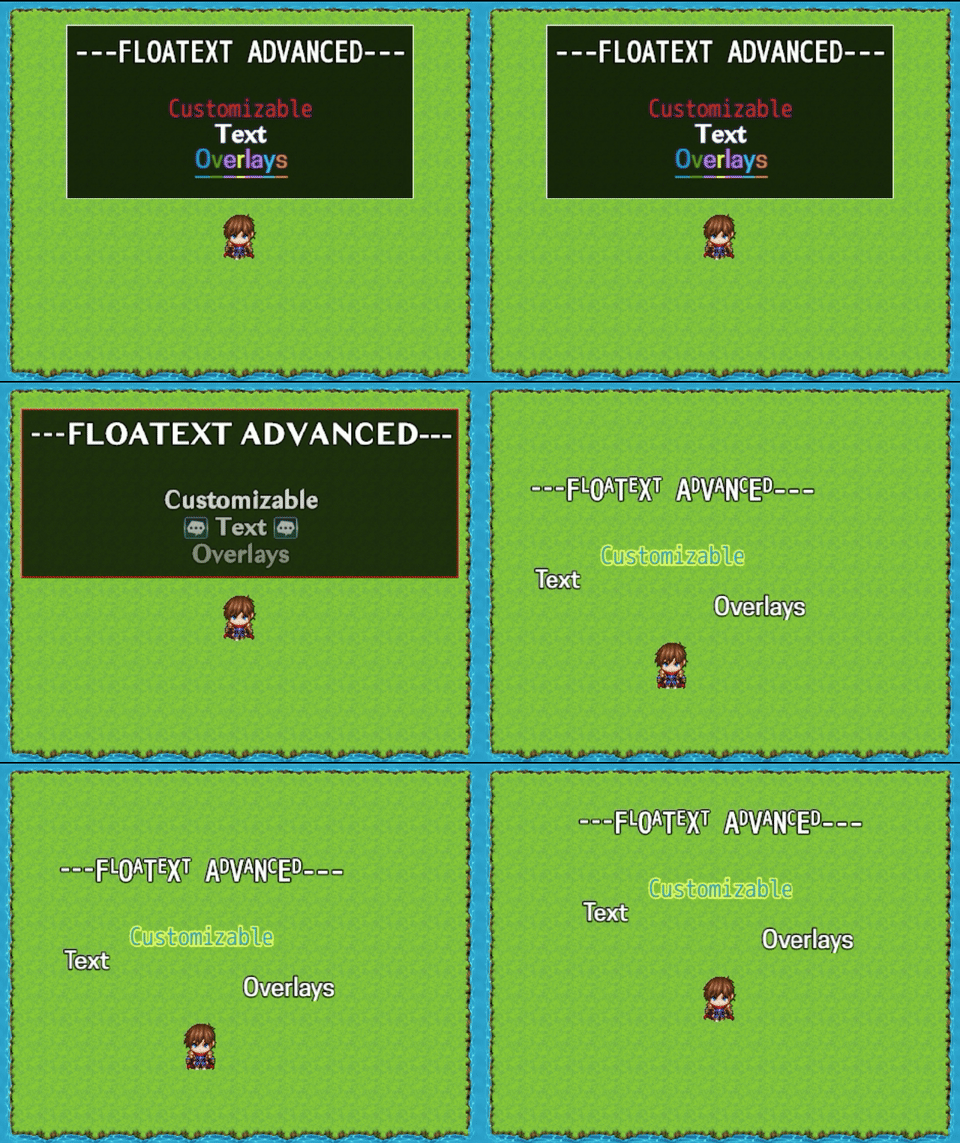
You can use custom fonts, colors, opacity, icons, frames, and backdrops and more.
You can make floatexts appear depending on their distance from the player, paired with fading animations.
The Project File contains a map example with all the features and their setup.
The Plugin comes with a full description of all the features and how to use them.
Features
- Floating text above events from event comments or note boxes. Single line or Multi lines.
- Alignment: left/center/right
- Bold/italic/underline
- Colors (fill and outline)
- Opacity
- Font size, font scale
- Custom Font compatibility
- Backdrop
- Frame (line border with color and thickness)
- Icons
- Range trigger (with fade-in/fade-out animation)
- Offset X/Y, extra padding (any side/all sides)
- Line/blank height
- Reset formatting from block-wide parameters
- Autoclear tag to manage display lifecycle through event pages
- Conditional branch compatible (Floatext displaying only if condition is met)
Screenshots
How to Install
You can follow this video made by Cazwolf if you need help installing the plugins:
How to Use (Plugin Help Description)
* ============================================================================
* DESCRIPTION
* ============================================================================
* The FLOATEXT plugin displays formatted text above map events.
* It supports block-wide settings and inline styling for precise control.
* Use custom fonts, colors, opacity, icons, frames, and backdrops.
* Distance-based fades and alignment keep text readable and polished.
*
* Remember to check the map example to see all of the plugin's features.
*
* ============================================================================
* HOW TO USE
* ============================================================================
* Floatexts are mainly declared via event's comments. Use the tag <floatext>
* to declare the start of a block, and </floatext> to close the block.
* Between these 2 tags, every comment you write will be displayed
* as a floatext.
* It's usually recommended to use the Multi Lines as follows
* to build your floatexts.
*
* ------Example for Multiple Lines: --------------------------------
*
* ◆Comment:<floatext>
* ◆Comment:These are
* : :multiple lines.
* ◆Comment:</floatext>
*
* ------------------------------------------------------------------
*
* ------Example for Single Line: -----------------------------------
*
* ◆Comment:<floatext>This is a basic single line.</floatext>
*
* ------------------------------------------------------------------
*
*
* Use a dedicated comment command for each of your tags to prevent errors.
* Use a dedicated comment command for your lines of text.
* To mark a line break, it's recommended to use a dedicated comment command
* with a blank space (" ").
* Each comment command contains 6 lines maximum,
* this is an engine's limitation. Play around that with several comment
* commands to build paragraphs and longer streak of texts.
*
* You can also use floatext as a single line in the event's note box.
* A floatext inside a page's comments will take priority over the note box.
* Using the note box is useful for events with a simple text and many pages.
*
* The order of priority for tags interacting with a floatext is as follow:
* Plugin's Default > Floatext Main Block > Floatext Inline
*
* ============================================================================
* MAIN BLOCK TAGS vs INLINE TAGS
* ============================================================================
* There are 2 type of tags: main block tags and inline tags.
*
* Main block Tags: they are formed like this: <floatext feature: x>.
* They are used before the <floatext> tag, and they affect everything
* inside the main block.
* You can also type "ft" instead of "floatext" to make for shorter eventing.
*
* ------Examples (offset and font type) : -----------------------------------
*
* ◆Comment:<floatext offset y: 12>
* ◆Comment:<ft font type: cooper>
* ◆Comment:<floatext>
* ◆Comment:Custom
* : :Font
* ◆Comment:</floatext>
*
* ---------------------------------------------------
*
*
* Inline Tags: they are used inside a main block to tweak specific parts
* of the floatext. It allows to change the color of a specific text part.
* These tags can be closed to stop applying their effect.
*
* ------Example (italic): -----------------------------------
*
* ◆Comment:<floatext>
* ◆Comment:<i>Italic</i>
* ◆Comment:</floatext>
*
* ---------------------------------------------------
*
*
* ============================================================================
* CONDITIONAL FLOATEXTS
* ============================================================================
*
* You can place floatext comments inside events conditional branches.
* Only the branch returning true will render its floatext.
*
* You can also use <floatext clear> in a branch as a way to remove text under
* certain conditions.
*
* ============================================================================
* FLOATEXT DISPLAY PERSISTENCE
* ============================================================================
* A floatext will still display if a new event page is triggered.
* You can use the page tag <floatext clear> or
* the note box tag <floatext autoclear> if the floatext persists between page
* changes.
*
*
* ============================================================================
* TAGS LIST
* ============================================================================
*
* Here are the features you can use to build your floatexts.
* When a value can be entered, it will be represented as a capitalized X.
* Example: <floatext feature: X> means X must be a value.
*
* If the tag shown does not contain <floatext ...>, it's an inline tag.
* Refer to prior sections to learn their differences and how to use them.
*
* Remember all main block tags can use <ft ...> instead of
* the full <floatext ...> if you need it.
*
* ----------------------------------------------------
*
* --- RESET ---
* <reset>
*
* Resets inline formatting (size baseline, scale, colors, opacity,
* alignment, styles...) to the block defaults.
* (See HOW TO USE section to understand priority order)
*
*
* --- OFFSET ---
* <floatext offset x: X>
* <floatext offset y: X>
*
* Offsets the floatext window from it's default location.
* 0 represents the center of the calling event.
*
*
* --- ALIGNMENT ---
* <floatext align: center>
* <floatext align: left>
* <floatext align: right>
*
* <a: left|center|right>
*
* Aligns the text inside the windows.
*
*
* --- FONT SIZE ---
* <floatext font size: X>
*
* <font size: X> </font>
*
* Controls the size of the text in px. This value is said absolute. It means
* it will be used as the main reference for subsequent scaling.
* If the font size is 100, and you then scale to 50, the px size displayed
* will be 50 (50% of 100px).
*
* --- SCALE ---
* <floatext scale: X>
*
* <scale: X> </scale>
*
* Scales text relative to the last absolute px baseline in percent.
* If a text is firstly displayed as 50px, using <scale: 50> will result
* in subsequent text to be 25px. Using <scale: 100> will revert to 50px
* as it's 100% of the baseline. Using <scale: 200> will result in text
* appearing 2 times bigger (50px x 200%).
*
*
* --- FONT TYPE ---
* <floatext font type: X>
*
* <font type: X> </font type>
*
* Sets the font family.
* This value is called "shortname", and is defined in the plugin's parameters.
*
* ex: <font type: cooper> if you named a font "cooper"
* in the plugin's parameters.
*
*
* --- FONT FORMATTING ---
*
* <b> </b>
* <i> </i>
* <u> </u>
*
* Toggles bold, italic, underline. <reset> restores block defaults.
*
*
* --- COLOR (FILL) ---
* <floatext color: X>
*
* <color: X> </color>
* <c: X> </c>
*
* Sets the text fill color of a text according to the ColorManager index.
* That's the windows.png colors found in your img\system folder.
*
*
* --- OUTLINE COLOR ---
* <floatext color outline: X>
*
* <co: N> </co>
*
* Sets the text outline color of a text according to the ColorManager index.
* That's the windows.png colors found in your img\system folder.
*
*
* --- OPACITY ---
* <floatext opacity: X>
*
* <o: X> </o>
*
* Sets floatext opacity. Inline opacity tags scales per segment
* in percent (0–100).
*
*
* --- BACKDROP ---
* <floatext backdrop>
* <floatext backdrop color: X>
* <floatext backdrop opacity: X>
*
* Draws a colored rectangle behind the text with adjustable opacity (0-100).
* Defaults to what's inputed in plugin's parameters.
*
* Color of the backdrop according to the ColorManager index.
* That's the windows.png colors found in your img\system folder.
*
*
* --- FRAME ---
* <floatext frame>
* <floatext frame: X>
* <floatext frame color: X>
*
* Builds a decorative line border around the windows displaying the floatext.
* Using <floatext frame: X> will change the thickness of the line.
* Using <floatext frame> will get its line thickness from plugin's parameters.
*
*
* --- PADDING ---
* <floatext padding: X>
* <floatext padding up: X>
* <floatext padding down: X>
* <floatext padding left: X>
* <floatext padding right: X>
*
* Adjusts inner spacing of the floatext window.
* It can be useful in case the text is not properly displayed and clipped/cut.
* If you don't specify a direction, it means all side will be adjusted.
*
*
* --- LINE HEIGHT ---
* <floatext line height: X>
*
* Sets the height space between lines in the floatext (percent).
*
*
*
* --- BLANK LINE HEIGHT ---
* <floatext blank height: X>
*
* Sets the line height factor for blank lines or line breaks (percent).
*
*
* --- RANGE ---
* <floatext range: X>
*
* Makes the floatext only appear when the player is within the range.
*
*
* --- FADE IN ---
* <floatext fadein: X>
*
* Sets fade-in duration in frames when entering range.
* Won't work if the floatext has no range tag.
*
*
* --- FADE OUT ---
* <floatext fadeout: X>
*
* Sets fade-out duration in frames when leaving range.
* Won't work if the floatext has no range tag.
*
* --- ICON ---
*
* <i: X>
*
* Inserts an icon from IconSet.png, auto-scaled to the current font size.
*
*
* --- CLEAR ---
* <floatext clear>
*
* Clears the current floatext for the event immediately.
*
*
* --- AUTOCLEAR (NOTE BOX ONLY) ---
* <floatext autoclear>
*
* Clears floatext automatically when the event page changes,
* instead of keeping previously loaded floatexts.
* DESCRIPTION
* ============================================================================
* The FLOATEXT plugin displays formatted text above map events.
* It supports block-wide settings and inline styling for precise control.
* Use custom fonts, colors, opacity, icons, frames, and backdrops.
* Distance-based fades and alignment keep text readable and polished.
*
* Remember to check the map example to see all of the plugin's features.
*
* ============================================================================
* HOW TO USE
* ============================================================================
* Floatexts are mainly declared via event's comments. Use the tag <floatext>
* to declare the start of a block, and </floatext> to close the block.
* Between these 2 tags, every comment you write will be displayed
* as a floatext.
* It's usually recommended to use the Multi Lines as follows
* to build your floatexts.
*
* ------Example for Multiple Lines: --------------------------------
*
* ◆Comment:<floatext>
* ◆Comment:These are
* : :multiple lines.
* ◆Comment:</floatext>
*
* ------------------------------------------------------------------
*
* ------Example for Single Line: -----------------------------------
*
* ◆Comment:<floatext>This is a basic single line.</floatext>
*
* ------------------------------------------------------------------
*
*
* Use a dedicated comment command for each of your tags to prevent errors.
* Use a dedicated comment command for your lines of text.
* To mark a line break, it's recommended to use a dedicated comment command
* with a blank space (" ").
* Each comment command contains 6 lines maximum,
* this is an engine's limitation. Play around that with several comment
* commands to build paragraphs and longer streak of texts.
*
* You can also use floatext as a single line in the event's note box.
* A floatext inside a page's comments will take priority over the note box.
* Using the note box is useful for events with a simple text and many pages.
*
* The order of priority for tags interacting with a floatext is as follow:
* Plugin's Default > Floatext Main Block > Floatext Inline
*
* ============================================================================
* MAIN BLOCK TAGS vs INLINE TAGS
* ============================================================================
* There are 2 type of tags: main block tags and inline tags.
*
* Main block Tags: they are formed like this: <floatext feature: x>.
* They are used before the <floatext> tag, and they affect everything
* inside the main block.
* You can also type "ft" instead of "floatext" to make for shorter eventing.
*
* ------Examples (offset and font type) : -----------------------------------
*
* ◆Comment:<floatext offset y: 12>
* ◆Comment:<ft font type: cooper>
* ◆Comment:<floatext>
* ◆Comment:Custom
* : :Font
* ◆Comment:</floatext>
*
* ---------------------------------------------------
*
*
* Inline Tags: they are used inside a main block to tweak specific parts
* of the floatext. It allows to change the color of a specific text part.
* These tags can be closed to stop applying their effect.
*
* ------Example (italic): -----------------------------------
*
* ◆Comment:<floatext>
* ◆Comment:<i>Italic</i>
* ◆Comment:</floatext>
*
* ---------------------------------------------------
*
*
* ============================================================================
* CONDITIONAL FLOATEXTS
* ============================================================================
*
* You can place floatext comments inside events conditional branches.
* Only the branch returning true will render its floatext.
*
* You can also use <floatext clear> in a branch as a way to remove text under
* certain conditions.
*
* ============================================================================
* FLOATEXT DISPLAY PERSISTENCE
* ============================================================================
* A floatext will still display if a new event page is triggered.
* You can use the page tag <floatext clear> or
* the note box tag <floatext autoclear> if the floatext persists between page
* changes.
*
*
* ============================================================================
* TAGS LIST
* ============================================================================
*
* Here are the features you can use to build your floatexts.
* When a value can be entered, it will be represented as a capitalized X.
* Example: <floatext feature: X> means X must be a value.
*
* If the tag shown does not contain <floatext ...>, it's an inline tag.
* Refer to prior sections to learn their differences and how to use them.
*
* Remember all main block tags can use <ft ...> instead of
* the full <floatext ...> if you need it.
*
* ----------------------------------------------------
*
* --- RESET ---
* <reset>
*
* Resets inline formatting (size baseline, scale, colors, opacity,
* alignment, styles...) to the block defaults.
* (See HOW TO USE section to understand priority order)
*
*
* --- OFFSET ---
* <floatext offset x: X>
* <floatext offset y: X>
*
* Offsets the floatext window from it's default location.
* 0 represents the center of the calling event.
*
*
* --- ALIGNMENT ---
* <floatext align: center>
* <floatext align: left>
* <floatext align: right>
*
* <a: left|center|right>
*
* Aligns the text inside the windows.
*
*
* --- FONT SIZE ---
* <floatext font size: X>
*
* <font size: X> </font>
*
* Controls the size of the text in px. This value is said absolute. It means
* it will be used as the main reference for subsequent scaling.
* If the font size is 100, and you then scale to 50, the px size displayed
* will be 50 (50% of 100px).
*
* --- SCALE ---
* <floatext scale: X>
*
* <scale: X> </scale>
*
* Scales text relative to the last absolute px baseline in percent.
* If a text is firstly displayed as 50px, using <scale: 50> will result
* in subsequent text to be 25px. Using <scale: 100> will revert to 50px
* as it's 100% of the baseline. Using <scale: 200> will result in text
* appearing 2 times bigger (50px x 200%).
*
*
* --- FONT TYPE ---
* <floatext font type: X>
*
* <font type: X> </font type>
*
* Sets the font family.
* This value is called "shortname", and is defined in the plugin's parameters.
*
* ex: <font type: cooper> if you named a font "cooper"
* in the plugin's parameters.
*
*
* --- FONT FORMATTING ---
*
* <b> </b>
* <i> </i>
* <u> </u>
*
* Toggles bold, italic, underline. <reset> restores block defaults.
*
*
* --- COLOR (FILL) ---
* <floatext color: X>
*
* <color: X> </color>
* <c: X> </c>
*
* Sets the text fill color of a text according to the ColorManager index.
* That's the windows.png colors found in your img\system folder.
*
*
* --- OUTLINE COLOR ---
* <floatext color outline: X>
*
* <co: N> </co>
*
* Sets the text outline color of a text according to the ColorManager index.
* That's the windows.png colors found in your img\system folder.
*
*
* --- OPACITY ---
* <floatext opacity: X>
*
* <o: X> </o>
*
* Sets floatext opacity. Inline opacity tags scales per segment
* in percent (0–100).
*
*
* --- BACKDROP ---
* <floatext backdrop>
* <floatext backdrop color: X>
* <floatext backdrop opacity: X>
*
* Draws a colored rectangle behind the text with adjustable opacity (0-100).
* Defaults to what's inputed in plugin's parameters.
*
* Color of the backdrop according to the ColorManager index.
* That's the windows.png colors found in your img\system folder.
*
*
* --- FRAME ---
* <floatext frame>
* <floatext frame: X>
* <floatext frame color: X>
*
* Builds a decorative line border around the windows displaying the floatext.
* Using <floatext frame: X> will change the thickness of the line.
* Using <floatext frame> will get its line thickness from plugin's parameters.
*
*
* --- PADDING ---
* <floatext padding: X>
* <floatext padding up: X>
* <floatext padding down: X>
* <floatext padding left: X>
* <floatext padding right: X>
*
* Adjusts inner spacing of the floatext window.
* It can be useful in case the text is not properly displayed and clipped/cut.
* If you don't specify a direction, it means all side will be adjusted.
*
*
* --- LINE HEIGHT ---
* <floatext line height: X>
*
* Sets the height space between lines in the floatext (percent).
*
*
*
* --- BLANK LINE HEIGHT ---
* <floatext blank height: X>
*
* Sets the line height factor for blank lines or line breaks (percent).
*
*
* --- RANGE ---
* <floatext range: X>
*
* Makes the floatext only appear when the player is within the range.
*
*
* --- FADE IN ---
* <floatext fadein: X>
*
* Sets fade-in duration in frames when entering range.
* Won't work if the floatext has no range tag.
*
*
* --- FADE OUT ---
* <floatext fadeout: X>
*
* Sets fade-out duration in frames when leaving range.
* Won't work if the floatext has no range tag.
*
* --- ICON ---
*
* <i: X>
*
* Inserts an icon from IconSet.png, auto-scaled to the current font size.
*
*
* --- CLEAR ---
* <floatext clear>
*
* Clears the current floatext for the event immediately.
*
*
* --- AUTOCLEAR (NOTE BOX ONLY) ---
* <floatext autoclear>
*
* Clears floatext automatically when the event page changes,
* instead of keeping previously loaded floatexts.
Download
Floatext Advanced - RPG Maker MZ Plugin by Welded Bones
The FLOATEXT plugin allows you to display customizable texts to your map events. For RPG Maker MZ.
 welded-bones.itch.io
Terms and Credits
Welded Bones Games RPG Maker MZ License Terms
[Donation Plugins]
Thank you for downloading this plugin! By using it, you agree to the following terms:
General Use
[Donation Plugins]
Thank you for downloading this plugin! By using it, you agree to the following terms:
General Use
- Personal Use: This plugin is free for any non-commercial project.
- Commercial Use: A one-time payment of $4.99 is required for any project that is sold, monetized, or used in a way that generates income. This includes, but is not limited to, direct sales, in-game purchases, and crowdfunding campaigns (e.g., Kickstarter, Patreon).
- Redistribution is Strictly Prohibited: You may not share, sell, or redistribute this plugin's files. The only authorized hosting location is the official distribution page at:
https://welded-bones.itch.io/
You are allowed to share links to this page, but you cannot re-host the plugin files yourself. - Modification: You may freely modify this plugin for use in your own personal or commercial projects. However, you cannot redistribute the modified version.
- Required Attribution: Any project that uses this plugin and is released to the public must include credit to the author.
- How to Credit: You can attribute the plugin to Welded Bones Gamesand link to the official distribution page in one of two ways:
- Directly within the final product (e.g., in a credits menu or splash screen).
- By including a copy of these license terms in a file within the project's folder.
Message from the author
You can leave any comment, remark or bug report on the dedicated itch.io page, or in this thread.
I'll do my best to acknowledge them.
Thank you for checking my plugin.
AI disclaimer: this work was crafted with the help of AI
Features Mentioned
- Floating text above events from event comments or note boxes. Single line or Multi lines.
- Alignment: left/center/right
- Bold/italic/underline
- Colors (fill and outline)
- Opacity
- Font size, font scale
- Custom Font compatibility
- Backdrop
- Frame (line border with color and thickness)
- Icons
- Range trigger (with fade-in/fade-out animation)
- Offset X/Y, extra padding (any side/all sides)
- Line/blank height
- Reset formatting from block-wide parameters
- Autoclear tag to manage display lifecycle through event pages
- Conditional branch compatible (Floatext displaying only if condition is met)
Downloads / Referenced Files
Log in to download
Log in, then follow the RPG Maker Developers Group to see these download links.
Log in to downloadLicense / Terms Note
Terms and Credits Spoiler: License Terms Welded Bones Games RPG Maker MZ License Terms [Donation Plugins]


Referenced Images / Attachments
Creator Claims / Removal
If you are the original creator and want this listing reassigned, edited, or removed, join BMMPlay and contact the moderators with proof that matches the original RPG Maker Web profile, linked GitHub, itch.io page, or another public creator identity.
Replies (0)
No replies yet.
0
replies
11
views
Topic Summary
Loading summary...