Plugin name: Phileas's Cursor
Author: Phileas
Version: 1.3.10 for MZ
Release date:
1.0.0 - 20.August.2023
1.1.0 - 21.August.2023
1.1.1 - 24.August.2023
1.2.0 - 11.March.2024
1.2.1 - 13.March.2024
1.3.0 - 16.March.2024
1.3.1 - 18.March.2024
1.3.2 - 19.March.2024
1.3.3 - 11.May.2024
1.3.5 - 28.May.2024
1.3.6 - 23.September.2024
1.3.7 - 30.December.2024
1.3.8 - 11.October.2024
1.3.9 - 04.January.2025
1.3.10 - 06.January.2025
Plugin description:
Changes the cursor image to any of the img/system.
Animated cursors are supported, details below.
Use png format!
To change the cursor to the standard one, do not select an image in the parameter/argument (option "(None)").
Plugin commands:
- Change the default cursor
- Change the battle cursor
- Change the menu cursor
- Hide cursor
- Show cursor
- Configure an event - configures the cursor for a single event
- Configure an event (global) - configures the cursor for a single event on any map
- Freeze the cursor and Unfreeze the cursor - control the freezing of the cursor
If cursor freeze is enabled, the cursor image will not be updated.
Optimization is useful if you don't use animations, click images, and event cursors.
You can set the cursor configuration for an event using the plugin command and using tags in the event notes:
- <CursorPicture:cursor> - this picture (cursor.png) will be used when the cursor is hovered over the event.
- <CursorClickPicture:cursorClick> - the picture displayed when clicked (if not specified, the cursor will not change when clicked)
- <CursorXOffset:5> - the click point will be shifted 5 pixels horizontally from the upper-left corner
- <CursorYOffset:5> - the click point will be shifted 5 pixels vertically from the upper-left corner
- <CursorFramesNumber:3> - the cursor will be animated with 3 frames of animation
- <CursorClickFramesNumber:3> - the cursor will be animated with 3 frames of animation when clicked
- <CursorStartOnClick> - the event will be triggered when you click on it.
- <CursorStartOnHover> - the event will be triggered when the cursor is hovered over it.
The settings set by the plugin command are saved along with the game progress.
When loading the map, the settings set by the plugin commands are first set. If there are none, the settings from the tags are loaded.
You can also switch the invisibility of the cursor by pressing the keyboard, mouse and gamepad keys.
To do this, configure the plugin settings. If you want to specify a key by a string name, set 0 to the number value.
ABOUT ANIMATED CURSORS
To make the cursor animated, set the CursorFramesNumber value (number of frames) via a parameter, command, or plugin tag.
The value must be greater than 1.
Animation is configured separately for the image when clicked, if there is one.
You must place in the "img/system" folder as many cursor images as you specified frames.
Specify the image of the first frame as the cursor image (CursorPicture) in the parameter.
Let's say this file is called "cursor.png" and you specified 3 frames.
Then the names of the other two files should be as follows:
- "cursor1.png"
- "cursor2.png"
That is, they must end with the frame number, numbering starts from 0.
You do not need to specify the number for the first frame file!
You can configure the preloading of cursor resources. This will speed up the switching of cursor images, but it may slow down the launch of the game.
Images from the basic cursors (default, battle and menu) are always cached.
If preloading of maps is disabled, the map event commands are cached when loading this map.
If the preloading of general events is disabled, the commands of this event are cached when it is called.
If the cursor image is not displayed, try to reduce its size.
How it looks like:
Code
License
This plugin is released under
MIT license.
This means that you can freely use the plugin in non-commercial and commercial games and even edit it.
But be sure to include me in the credits!
Compatibility:
If there are any problems, write to me.
License This plugin is released under MIT license. This means that you can freely use the plugin in non-commercial and commercial games and even edit it. But be sure to include me in the credits!




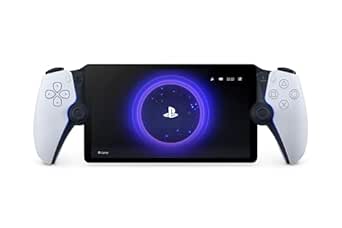 PlayStation 5 Portal Remote Player
Remote-play handheld for PS5 players who want more ways to play around the house.
View on Amazon
PlayStation 5 Portal Remote Player
Remote-play handheld for PS5 players who want more ways to play around the house.
View on Amazon