The
Map Icon Display plugin for RPG Maker MZ allows you to display icons on the map that are positioned relative to specific events. These icons are defined using entries in the event's note field, making it simple to add visual indicators or decorations directly onto the map.
Plugin Description
The
MapIconDisplay plugin for RPG Maker MZ allows you to display icons on the map that are positioned relative to specific events. These icons are defined using entries in the event's note field, making it simple to add visual indicators or decorations directly onto the map.
How To - Instructions for Use
- Install the Plugin:
- Save the plugin as a .js file (e.g., MapIconDisplay.js).
- Copy the file into the js/plugins folder of your RPG Maker MZ project.
- Open the Plugin Manager in RPG Maker MZ and activate the plugin.
- Display an Icon on an Event:
- Open the event where you want to display an icon.
- Go to the Note field (top-right corner in the event editor window).
- Add the following tag: <MapIcon: ID X Y>
- Y: Optional vertical offset in pixels (default: 0).
- X: Optional horizontal offset in pixels (default: 0).
- ID: The ID of the icon from the icon set (refer to the icon editor in RPG Maker for the IDs).
Example:
<MapIcon: 64 16 -16>
- This example displays the icon with ID 64, offset 16 pixels to the right and 16 pixels up.
- Test Your Game:
- Save your changes and run the game to see the icon displayed at the specified event.
More Examples
- Icon directly above the event:<MapIcon: 128>
Displays the icon with ID 128 without any additional offset.
- Icon shifted upwards and to the left:<MapIcon: 64 -20 -30>
Displays the icon with ID 64, shifted 20 pixels to the left and 30 pixels upward.
Notes
- The plugin uses the event's note field, allowing multiple tags for different events to be managed easily.
- If the icons are not displaying, check the following:
- Ensure the icon ID exists in the icon set.
- Verify the syntax of the note field tag.
- Confirm that the plugin is activated in the Plugin Manager.
Terms:
Free for Non-Commercial or Commercial Project.
Please credit "Philly" or "Kento Games"
Download





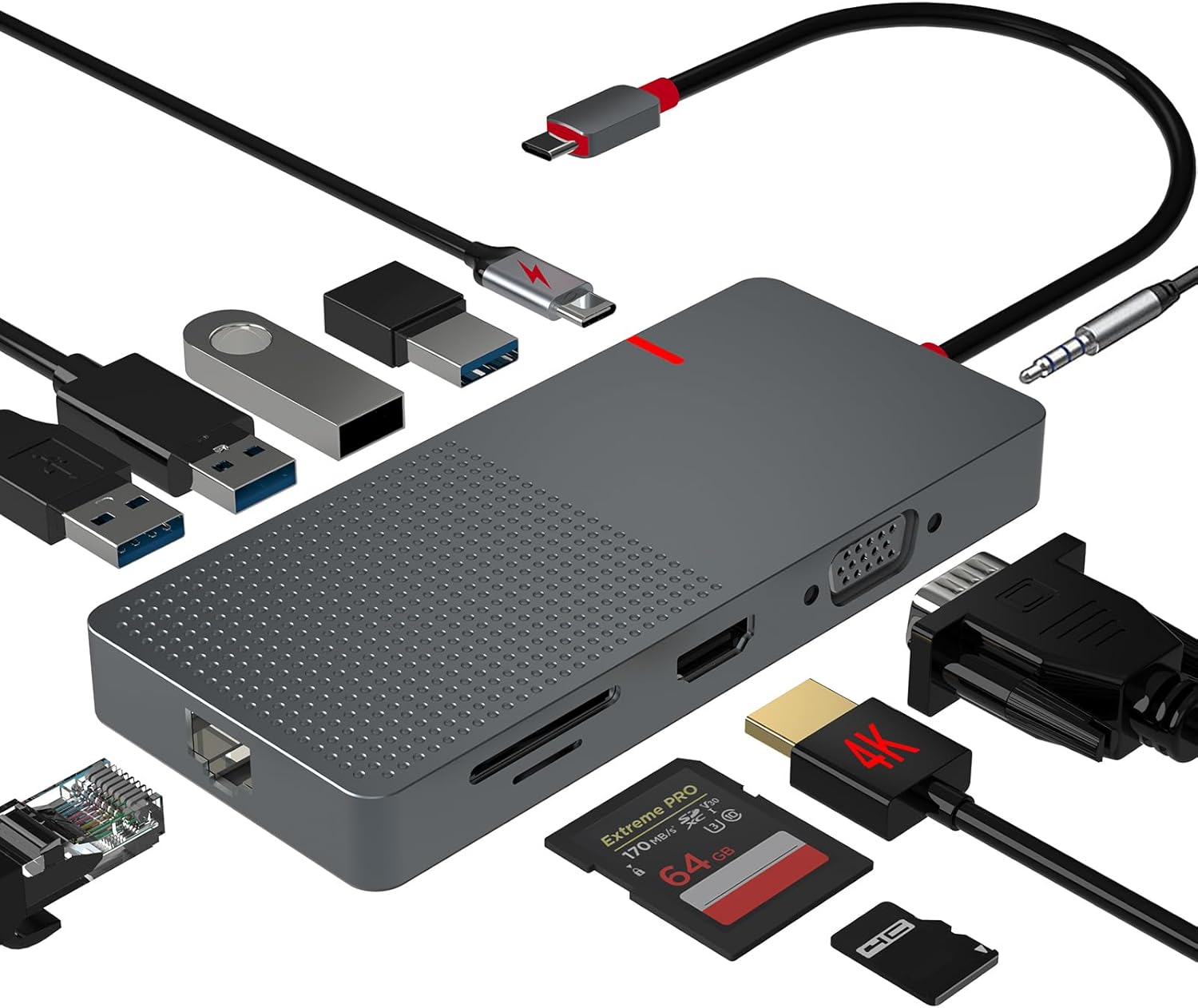 ANYPLUS USB C Docking Station Dual Monitor
Multiport USB-C dock for dual-monitor laptop desks and cleaner cable management.
View on Amazon
ANYPLUS USB C Docking Station Dual Monitor
Multiport USB-C dock for dual-monitor laptop desks and cleaner cable management.
View on Amazon