Sensor SelfSwitch v3.3.3 by Lyson Introduction This plugin activates a self switch when a player is in a certain proximity of an event. It uses a notetag in the note of the event or in event page comments to set the proximity.
Sensor SelfSwitch v3.3.3
by Lyson
Introduction
This plugin activates a self switch when a player is in a certain proximity of an event. It uses a notetag in the note of the event or in event page comments to set the proximity.
Features
- Automagic Selfswitching based on player location in relation to tagged event!
- Comment or Event Notetags!
- Comment tags can have their own Self Switch identified!
- Line, Cone, Rectangular or Circular sensor zones!
- Blackout Regions!
- Game Variables for any sensor type!
- Game Variable for Blackout Regions!
- Game Switch to enable/disable Blackout Regions!
-
#0000ff">Plugin Commands!
Video
How to Use
Parameter Usage
Event Self Switch
Set the self switch to be triggered by the event tag when a player enters the range. Options are A, B, C, and D. Default is D.
If you are using the Event notes tag, it is recommended to have a simple blank page as the first page, you can set a move route and all but nothing in the contents area will activate. Unless you are running parallel process.
Event tags provide 2 way functionality, they will turn off the switch when the player leaves the event's range.
Comment Self Switch
Set the self switch to be triggered by the comment tag when a player enters the range. Options are A, B, C, and D. Default is D.
The Comment tags will only be used when the page containing the comment is active, this will not activate any of the items (before or after) in the contents.
Comment tags only provide 1 way switching, they will NOT turn off the Self Switch when the player leaves the event's range
Blackout Region
The region number that will stop the selfswitch. Number between 1 and 255
ackout Region is the number of the region where you want the sensor to be ineffectual.
Blackout Variable
Set Blackout Region to be the a variable number. NO - false, YES - true
When Blackout Variable is true, Blackout Region is the variable number whose value contains the desired region number, anything other than a number set to the variable will most likely cause errors.
Blackout Switch
Set Blackout Region to trigger by a switch (set below). NO - false, YES - true
When Blackout Switch is true and the switch (set in Blackout Switch Number) is off, the region established for Blackout Region will not alter the functions of the sensor.
Blackout Switch Number
Set the number of the switch to trigger the Blackout Region. This will not be used unless Blackout Switch is set to true.
When it is ON the established region will prevent triggering the self switch.
Notetags Usage
These notetags go in the note box for the event or in a comment on an event page. Add "!" (without quotes) in front of any number to make it use the variable of that number. So if you want to use the value of variable 7 then use <Sensor: !7>
<Sensor: x>
Where x is the number of tiles away that the selfswitch will be triggered.
<SensorLV: x>
This makes it so that the selfswitch will only be triggered in a straight line in the direction the event is facing.
Where x is the number of tiles away that the selfswitch will be triggered.
<SensorCV: x>
This makes it so that the selfswitch will be triggered in a cone, the direction the event is looking.
Where x is the number of tiles away the cone extends.
<SensorRV: x, y>
This makes it so that the selfswitch will only be triggered in a rectangular line in the direction the event is facing.
Where x is the number of tiles to both sides of the event's looking direction, and y is the number of tiles away that the selfswitch will be triggered.
Plugin Command Usage
Change your sensors on the fly! Use Plugin Commands to alter any aspect of sensors on your event.
You could even ADD or REMOVE sensors to/from an event.
LSensor event property value
LSensor page property value
Okay, this is the Plugin command LSensor is required, as is either event or page. If you don't have at least one property and value after these, why are you using the plugin command??
You can have any number of properties and values in the Plugin command, but only 1 event or page identifier.
The event identifier is equivalent to using/modifying the event note tag.
The page identifier is equivalent to using/modifying a comment tag.
Here is the list and limits of the properties:
Property Values
Id x (number)
Type b, cv, lv, rv, null
Range x (number)
RangeVar x (number)
Width x (number)
WidthVar x (number)
Dir d, l, r, u, down, left, right, up
ThisDir true
Id x (number)
The Id of the event to be affected, this is not needed if the change is
to happen on the current event. Do NOT include preceding 0's.
Type b, cv, lv, rv, null
These are basic, coneview, lineview, rectangleview, the shorthand MUST be
used. Width/WidthVar will be ignored on b, cv, and lv types. The command
null will prevent the sensor from working, effectively removing it.
Range x (number)
Know that if you set this and then RangeVar, Range will be overwritten.
RangeVar x (number)
This is the variable number whose value will be used for the sensor Range.
Width x (number)
Know that if you set this and then WidthVar, Width will be overwritten.
WidthVar x (number)
This is the variable number whose value will be used for the sensor Width.
Dir d, l, r, u, down, left, right, up
Shorthand or full word can be used with Dir. This will set the direction that the sensor will use.
ThisDir true
This will set the sensor to use the direction of the event itself.
Do NOT use both this and the Dir commands. This will lead to errors.
## A note about page sensor changes. The changes will only occur for the current page, and will not persist through page changes, even if the page that was changed comes back up. The plugin will use the original tag, if there was one, to make a sensor on page changes.
Plugin
v 1.2
Download from pastebin
v 3.2.2
Download from pastebin -
Demo
v 3.3.3
Download from pastebin
Rate it here
Changes
1. Refactored the code a bit.
2. Added a few lines to prevent the tag checking and sensor functions from running if the player hasn't moved.
3. Added estroile's fix to the tag processing function.
v1.2
1. Plugin name independent
2. This is for anyone looking for just basic circle sensor implementation.
v2.1
1. Added support for comment tags to be used.
2. Added option for comment tags to use a different Self Switch
3. Added Line View sensor option.
4. Added the ability to use Game Variable values as the sensor range for basic sensor.
5. Added the ability to use Game Variable values as the sensor range for Line View sensor.
v3.0
1. Added Cone View sensor option.
2. Added Rectangle View sensor option.
3. Added Blackout Regions
4. Fixed up some logic to improve performance and readability.
v3.1
1. Fixed an error that occured if an event's first page had conditions.
2. Fixed a problem with blackout zone switches operating incorrectly.
3. Made the plugin file name independent. Nah, just broke the whole darn thing.
v3.1.1
1. Rebuilt tag checking.
2. Commas are no longer required in tags.
4. Removed Var tags for a more friendly use of ! variable identifier.
5. Added Plugin Commands so you can add/remove/modify sensors on the fly
v3.2.1
1. Removed some unused code.
2. Added On/Off plugin commands
3. Fixed issue with blank Blackout Regions.
v3.2.2
1. Fixed an issue found with a plugin command.
v3.3.3
1. Sensor tags may now hold multiple directions, spaces between directions are optional. Shorthand (first letter) or longform (full word) are accepted as well.
2. Plugin commands now take multiple directions, spaces are required. Shorthand or Longform accepted. Ex: LSensor event dir left r down
3. Changes made to sensors from another event now store properly between menu/map changes.
4. Help section mentions multiple directions in both the tag and plugin command information.
Incompatabilities
Pixel Movement/Collision plugins are likely not going to work with this.
Untested with different tile sizes.
Credit
- Lyson
Terms
- Free for commercial or non-commercial with credit to Lyson.
- Do not post anywhere without permission. If you want to translate into another language, ask me and provide a link to the site you wish to post it on.
Special thanks to estriole and Gilles!!
Credit - Lyson Terms - Free for commercial or non-commercial with credit to Lyson.




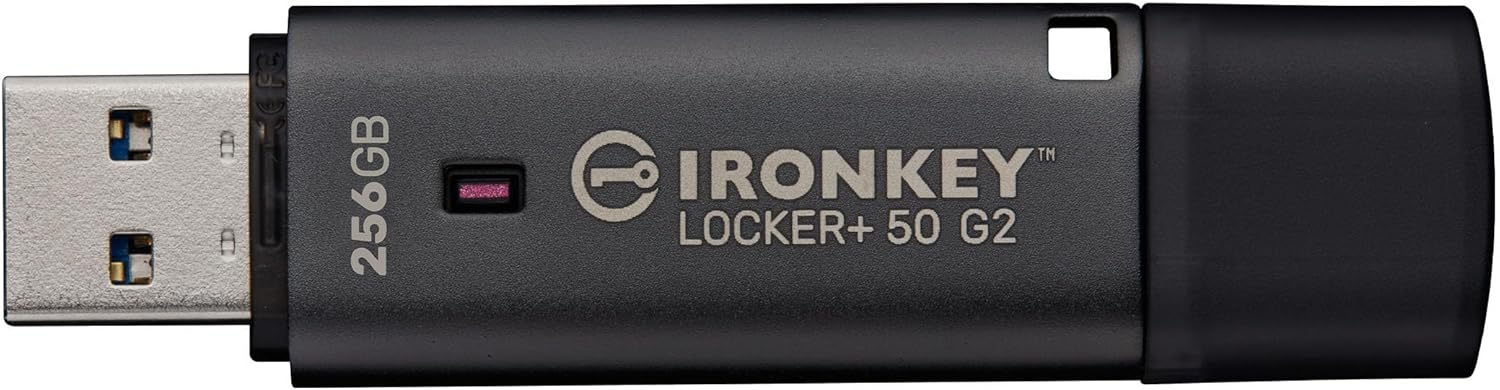 Kingston IronKey Locker+ 50 G2 256GB Encrypted USB Drive
Encrypted USB storage for secure files, travel documents, and work backups.
View on Amazon
Kingston IronKey Locker+ 50 G2 256GB Encrypted USB Drive
Encrypted USB storage for secure files, travel documents, and work backups.
View on Amazon