public

Rpg Maker Developers Group

Simple enough for a child, powerful enough for a developer

2 Followers

Play Ocarina like in Zelda.

BMM_Archive · July 16, 2026

Preserved forum archive. This topic stores the original first post and locally mirrored RPG Maker Web attachments when available. It is posted by the BMMPlay archive account, not by the original creator.

Original Source

  • Original title: Play Ocarina like in Zelda.
  • Original author: ShadowDragon
  • Original date: December 7, 2020
  • Source thread: https://forums.rpgmakerweb.com/threads/play-ocarina-like-in-zelda.130734/
  • Source forum path: Game Development Engines > RPG Maker Tutorials > RMMV Tutorials

Summary

New Tutorial that is for the Zelda fans =) There are plugins available to play the ocarina style ON MAP and IN BATTLE, some very complex to get it working. Now, will this work on the map, Ofcrourse it will work, but probably not in battle (not tested).

Archived First Post

New Tutorial that is for the Zelda fans =)

There are plugins available to play the ocarina style ON MAP and IN BATTLE, some very complex
to get it working.

Now, will this work on the map, Ofcrourse it will work, but probably not in battle (not tested).

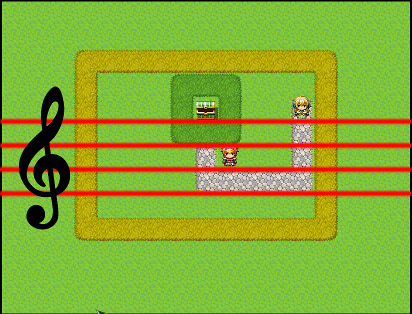
what it will look like: (if gif play):
Protected download
if it doesn't work, try to click it (it's animated, so I dont know if it plays it, if not, play the demo) =)

while I wont explain exacly how to create it, but here is what you MUST have in order to work.

Plugins required:
- YEP_EngineCore

if you dont have the following (recommended plugin) I created a temp plugin for same effect!
ShadowDragon_SM (StopMovement) (best not use in project, but use on your own risk!)
- YEP_StopMapMovement (I cannot include this one, because it's behind paid wall)

Switches and Variables Used:
Switch Main Loop
Switch Play Ocarina
Switch Learning Song
Switch Check Song
Switch StopMovement (temp plugin as replacement for YEP_StopMapMovement)

Variable Song (placeholder)
Variable Song Index (button column reader)
Variable Songs++ (each song has it's variable, so add as many as you like.)


Step by Step tutorial (comments are in Demo as well):

We start with creating 4 Common Events (pictures and explantion)
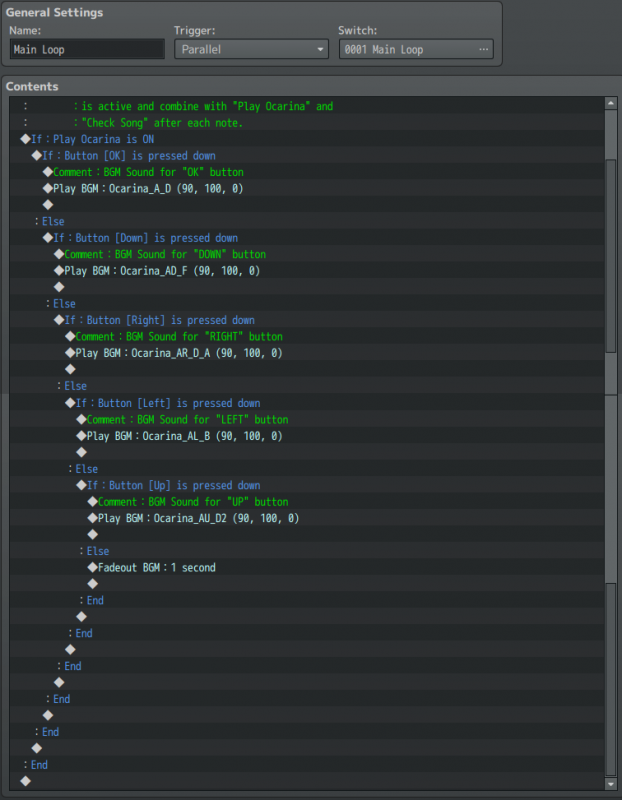
Main Loop trigger is set Parallel, and switch to Main Loop.
Conditional branch checks first if the ocarina is been played, else it does nothing,
if it does, we check the buttons pressed (this can be spammed if not triggered
correctly after (see Play Ocarina) where we come later to it.

Check if OK is being pressed, else, we check if DOWN is being pressed, same
with RIGHT, LEFT and UP. (you can use more notes if you like, use a keymapper
in this case (not in this tutorial).

Keep in mind that the sounds are NOT 100% correct, so correct them with
your own sounds, this is only an example!.

Protected download

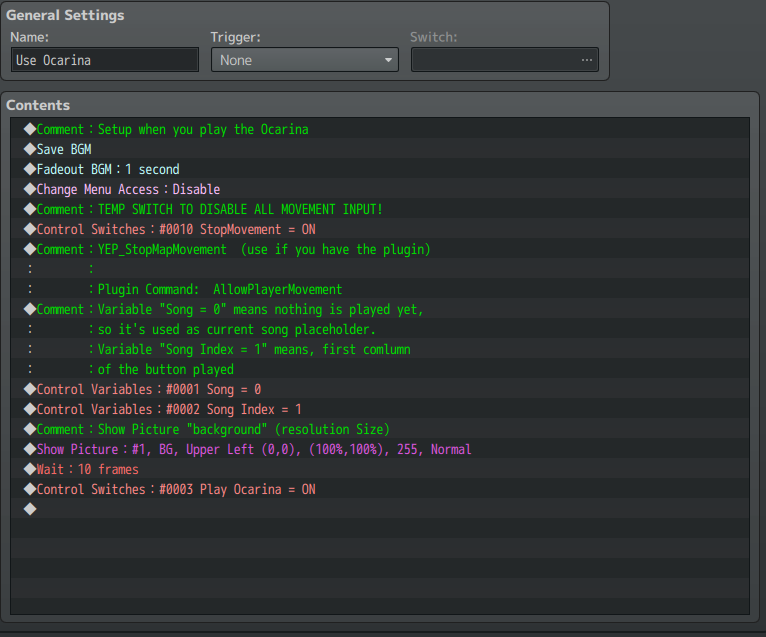
When you use the Ocarina (you can use a keymapper or YEP_ButtonCommonEvent
to attach this common event to the button.

We first save the BGM that is played on the MAP and fade that out in 1second.
You may experience to 2-4 seconds, I wont recommend higer than 3 though.
We also Disable the Menu Access after so we dont get into the menu unwanted.

StopMovement switch (ShadowDragon_SM) is a temp solution for YEP_StopMapMovement.
The song variable is set to 0 (Song variable is the placeholder), Song Index reads the columns.

1 is the first button, (later explained).
after that, We place the background (you can be creative in creating those)
wait 10 frames this buffer is required, 10 to 30 frames max), than we set the Switch
Play Ocarina ON. (which activate Main Loop Common Events to play the notes!)
Protected download

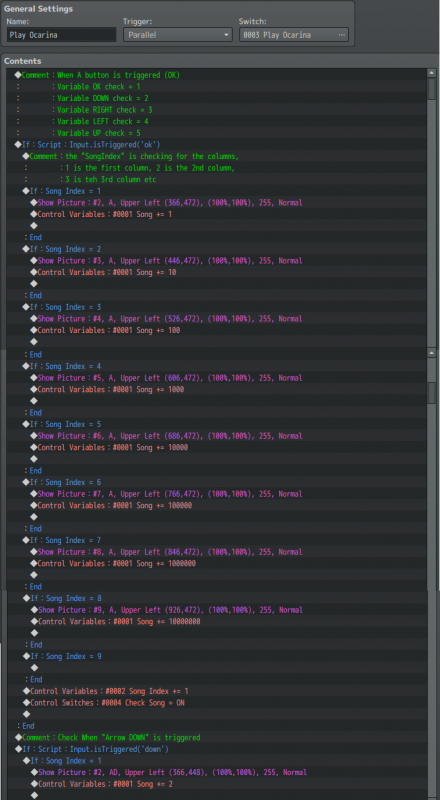
This is a repeatable check, I explain "OK button", but repeat for DOWN, RIGHT,
LEFT and UP.

The Commont for variable placed (you may change it).
OK check = 1
DOWN check = 2
RIGHT check = 3
LEFT check = 4
UP check = 5

those numbers are used in the variable, this can be part of 2 ways,
Long way and short way (confused) but I explain both in the spoiler "How Variables are readed"
so you can choose which one you like (optional to check, recommeded for beginners).

When Song Index = 1, we show a picture which is on the far left, when Song Index is 2,
increse the X to +80 (or what fits for your resolution and settings), the Y is the same for
the OK button, so only X is needed. repeat for Song Index 3, 4 ~ 8 (9 stays empty)

9 is basicly max, while variables cannot have more than 9 digits.
On the end, we add Song Index +=1 (so we have song Index 2,
SongIndex = 2 reads the 2nd column of the button, Song Index 3, reads
the 3rd column etc. we also see if the Check Song = ON (self turning switch OFF)
Explained in Spoiler "Check Song" (next part below this image).

Protected download

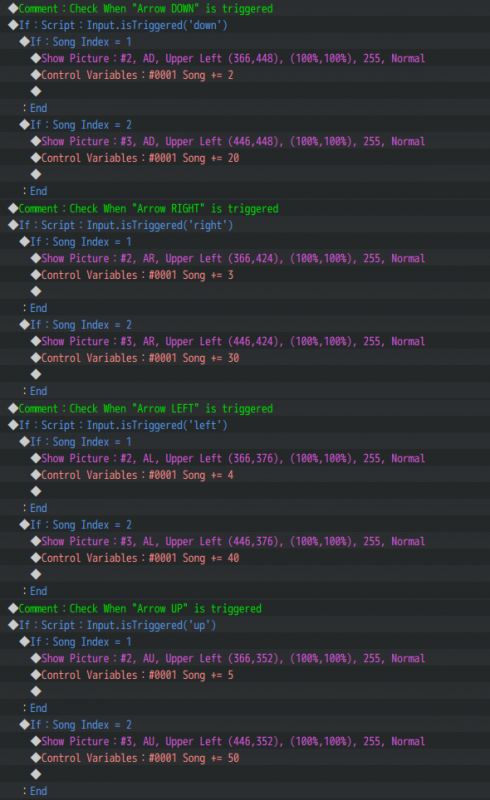
On the DOWN, we add +2 when SongIndex = 1, +20 when SongIndex = 2 etc,
On RIGHT, we add +3 on SongIndex = 1, +30 when SongIndex = 2 etc,
On LEFT, we add +4 on SongIndex = 1, +40 when SongIndex = 2 etc,
On UP we add +5 on SongIndex =1, +50 when SongIndex is 2 etc,
the higher the SongIndex, the more 0's (zeroes) you add, or 1 less 0.
(depends what's easier, see spoiler "How variables are readed")
Protected download

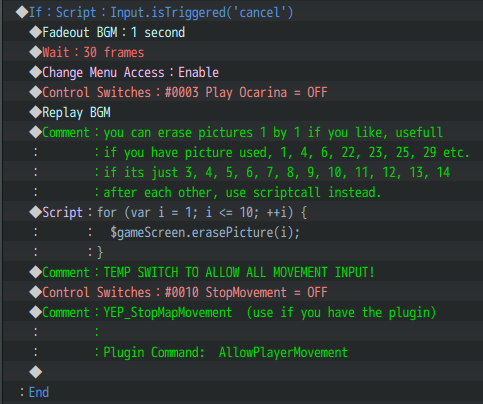
On the Play Ocarina still, we also check when the "cancel button" is triggered,
if you ask, why is not "escape" checked? (Input.isTriggered('escape') is because
cancel and escape functions in the same way.

we fade out the BGM of the ocarina sounds, 30 wait frames (buffer and important)
without buffer or lower than 20, the menu might open, 30 frames avoid that.
we Enable the Menu Acces back on, and Play Ocarine switch OFF.
after we replay the map BGM again.

the next part of erasing images can be quiet long, erase pic, erase pict2,
erase pict 3, up to all 10, but it is required if you use 1, 3, 6, 10, etc, else
we just erase them in a batch using:

JavaScript:
for (var i = 1; i <= 10; ++i){  //this means, 1 is the picture ID, 10 is the end of Picture ID
$gameScreen.erasePicture(i); // this erase all pictures in a range from 1 through 10.
}

in case you picture ID 41-50, use var i = 41; i <= 50 instead.
than (temp plugin), turn switch OFF to enable player movement again.
else AllowPlayerMovement if you use YEP_StopMapMovement.
Protected download

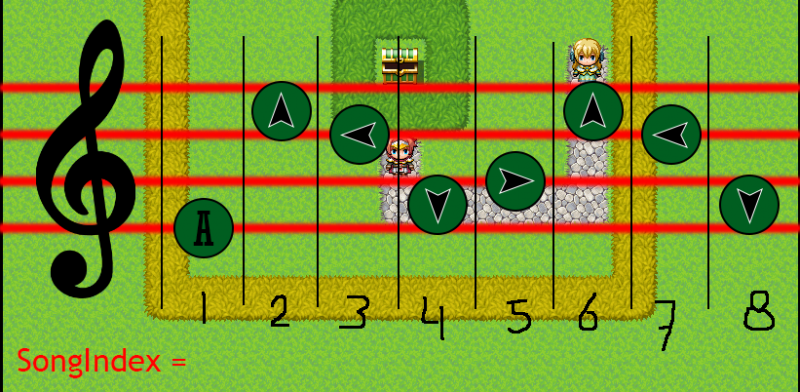
SongIndex = 1 are the columns like I said before, but if it's confusing somehow,
here is a sample (songIndex 1 is only readed ones, while we increase it by +1.
so here is a sample how SongIndex is readed: which explain the button setting.
Protected download



I use this in 3 parts, first part first, 2nd part below this image.
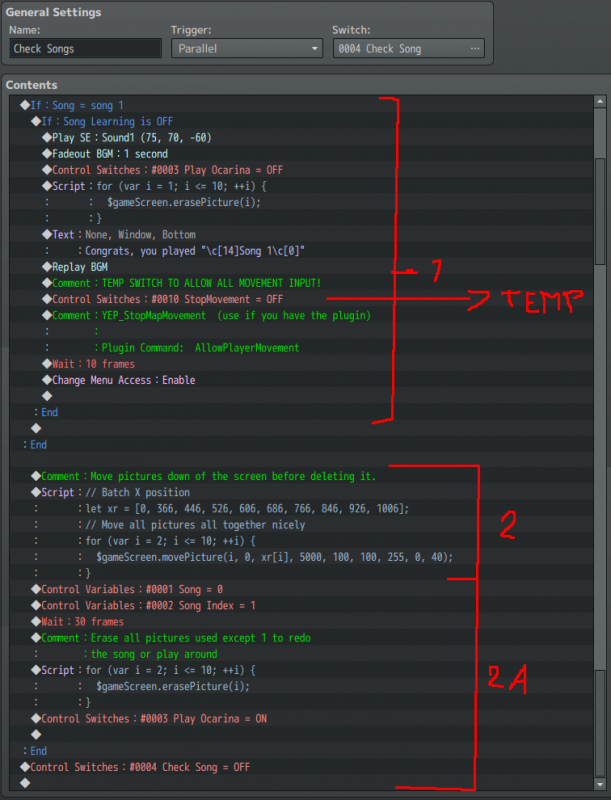
Check Song trigger is parallel (very important, DO NOT USE AUTORUN), even if it
turn the Check SOng switch turn OFF.

If Song = Song 1 (check if Song variable is the same as Song 1)
we also check if Song Learnging = OFF (switch), explain later on "Event Setup)"
if the song is correct, play a sound effect, fade out BGM 1 second, Switch Play Ocarina = OFF,
we dont want them to play do we? than we erase the images in a batch (same as you
press cancel button).
IMPORTANT PART HERE: Replace Text (placeholder) to make an effect, like
weather change to rain, thunder, or time +6 hours, or teleport somewhere or open
passages when in the correct place, so be creative here.
We replay the map BGM again, and enable map movement here again.
wait 10 buffer, and acces Main Access to Enable (make it 20-30 to be save).
Protected download

Part 2 and 2A, Scripcall with xr is optional:

JavaScript:
let xr = [0, 366, 446, 526, 606, 766, 846, 926, 1006] // X possition array optional
for (var i = 2; i <=10; ++i) { //we skip 1 because we dont want the background to be deleted
$gameScreen.movePicture(i, 0, xr[i], 5000, 100, 100, 255, 0, 40);
}

the scriptcall for move picture i = picture ID2 through 10, xr reads the array,
so all bottons drops down to Y position of 5000 in a duration of 40 frames.
when you enter a wrong song, you can also move it to without xr, and replace
for 1000, so it go to the right of the map, or -1000 to the left. so play around
with the X (xr), Y (5000), 40 (duration).

we set the variable Song back to 0, and song index to 1, than we Play Ocarina to ON
and Check Song OFF. so we can try again for the correct song.

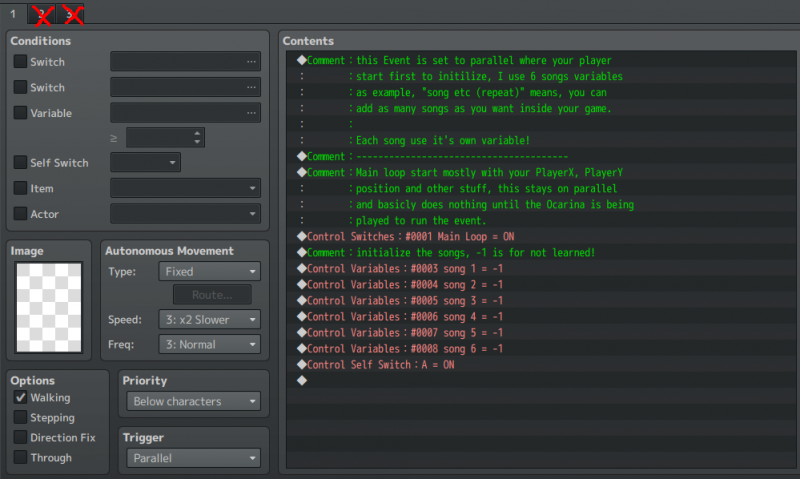
Short explaining how to set up. so we start with initialize the songs (page 2 and 3 are irrelivant)
page 2 = empty event with condition of Switch A is ON.

Main Loop Switch is activated on the first map where your actor starts the game.
this is set to parallel, autorun is also possible, but parallel is recommend in this case.

Variables Song 1 through song 6 are set to -1, it means, you cannot play this song, as long
it is not learned. you can add songs with already given value (hidden/secret melodies) for
suprise if you like to or devMode =)
Protected download

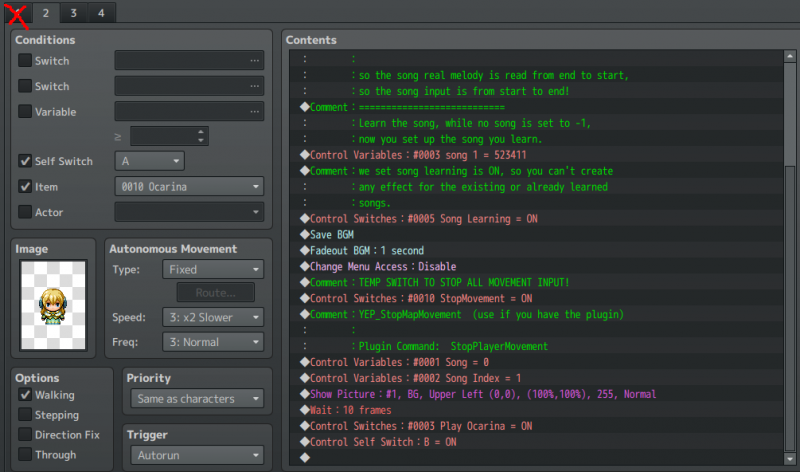
Learning a Song (finally) (now we can put it in action (yay))
We set the variable for Song 1 to be learned (you can set the song to be learned)
the setup for the variable is 523411 (how to use those variables is in the next spoiler)

Learning Song switch = ON, this is important on learning a song, so you cannot play any
song you learned at that moment, so long you learn a new song.
Save Map BGM, this basicly copy the common event "Use Ocarina"
in addition of variable and learning switch is added. (page 1 is irrelivant, but you may add
one if you want text before like what you learn (see demo), and check if the player has
the ocarina or a different instrument before it can learn a song.
Protected download

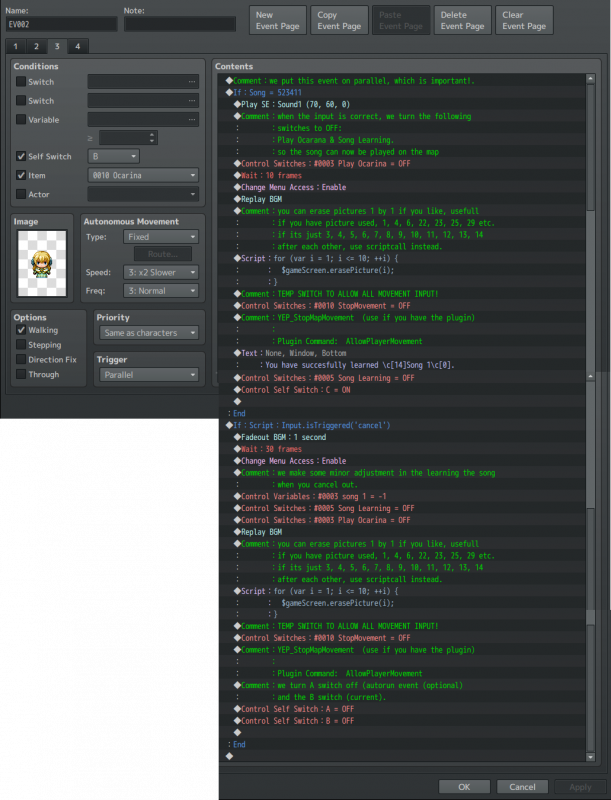
if song = 523411 (the song you need to learn), if correct, play SE sound.
Play Ocarina switch = OFF, buffer of 10 frames (minimum, 20-30 to be saver),
Enable the menu again, and replay BGM, erase pictures in a batch again and return
Players movement and a text and or effect that you learned a new song/melody.
Learning Song Switch is OFF, so you can play it everywhere you like too. and SelfSwitch
B, C, D = ON, or E, F + if you have YEP_SelfVar Plugin.

when cancel, you can copy the cancel part, but we add 1 switch and 1 variable to it.
Variable Song = -1 (so you cancel the song learning)
Switch learning Song = OFF, so you can play the songs you already learned.
Protected download

The final part is how Variables are readed, both long, and short (easy and confused)

confused/hard way (used in demo used)

When Song Index = 1, we add to the variable Song+= 1,
when Song Index = 2, we add to the variable Song += 10,
then on 3, we add 100 (we add +0 to each Song Index.

in the demo, I use A A<- ->↓↑ (114325) but while Song index = 1, than +10
it start on the end. so you need to read it backwards (reversed), and so it
become: 523411 as the song. 1 1 = A A.

Long and Easy way is to read the 00000 if you want 11432500 (+2 "00")
so if you have a song AA (1 1), than you have 11000000 as song number.

So you have the following if the above is to hard or confused, change the variables to the following:
Song Index 1 += 10000000
Song Index 2 += 1000000
Song Index 3 += 100000
Song Index 4 += 10000
Song Index 5 += 1000
Song Index 6 += 100
Song Index 7 += 10
Song Index 8 += 1

Basicly, you reverse the index to start with a high number, so the 11432500
has the correct button input you place, else reversed, this means, you always
need to put the 8 digit song as learning, if it has 4 digit button, it would be
like this: 52140000 on the end.

That's for the tutorial setup, read the demo (use reversed variable reading)
but if you have any question or suggestions, feel free to ask your questions.

be creative in making it a wonderfull way it will fit.

TIPS: when creating a piano from it (piano? yes, a piano)
Use a keymapper to use more buttons =), this is Zelda based, so instead of
a lines, use a flute or music Note with the Letter and arrows inside of it.

create colorfull notes or use a flute, or drums, or pipes as image that creates notes.
the possibillities are almost endless as long you let your brains working.

Credits? Nah, dont have to as long you use creativity, but creativity image
of the background and notes used are welcome =) if you cannot make them,
maybe I can create one for you, but I tell you, it's easy

Enjoy.


Download here the Example:

Downloads / Referenced Files

Log in to download

Log in, then follow the RPG Maker Developers Group to see these download links.

Log in to download

License / Terms Note

Credits? Nah, dont have to as long you use creativity, but creativity image of the background and notes used are welcome =) if you cannot make them, maybe I can create one for you, but I tell you, it's easy Enjoy.

Referenced Images / Attachments

Untitled Project.gif
MainLoop1.png
MainLoop1.png
UseOcarina2.png
UseOcarina2.png
PlayOcarina3.png
PlayOcarina3.png
PlayOcarine_3.png
PlayOcarine_3.png
PlayOcarina2.png
PlayOcarina2.png
SampleSongIndex.png
SampleSongIndex.png
CheckSongs4.png
CheckSongs4.png
Initialize.png
Initialize.png
LearningSong1.png
LearningSong1.png
LearningSong2.png
LearningSong2.png
Creator Claims / Removal

If you are the original creator and want this listing reassigned, edited, or removed, join BMMPlay and contact the moderators with proof that matches the original RPG Maker Web profile, linked GitHub, itch.io page, or another public creator identity.

#039#rpg-maker-archive#mv-tutorials

Replies (0)

No replies yet.

0 replies 1 view

Log in to reply.

User Avatar