






Preserved forum archive. This topic stores the original first post and locally mirrored RPG Maker Web attachments when available. It is posted by the BMMPlay archive account, not by the original creator.
Original Source
- Original title: Random Chest Event & Reset
- Original author: Jusfury
- Original date: January 21, 2016
- Source thread: https://forums.rpgmakerweb.com/threads/random-chest-event-reset.55378/
- Source forum path: Game Development Engines > RPG Maker Tutorials > RMMV Tutorials
Summary
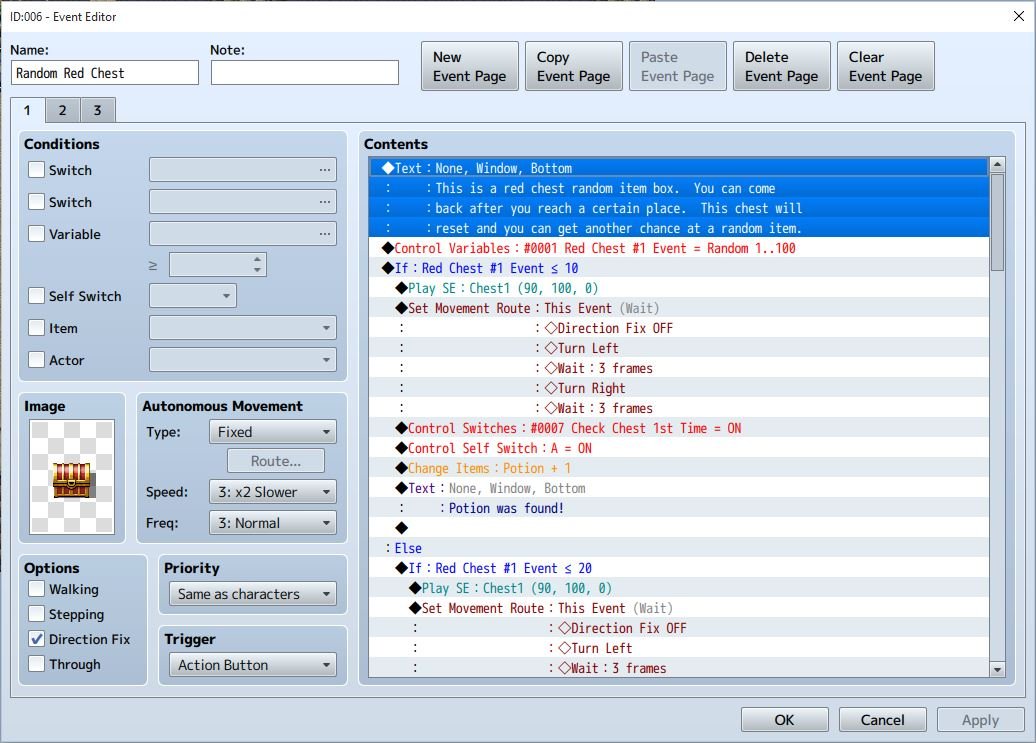
Event rolls a number Equal to or less than 10. You'll get a potion. I also turn on the switch shown in Step 1: Check Chest 1st Time. Step 4: You need to make a conditional branch in the else branch of the last conditional branch using the same variable higher than 10. As shown in Step 3B just under where I circled.
Archived First Post
This is likely one of the most wanted things people have been looking for.
Step 1:
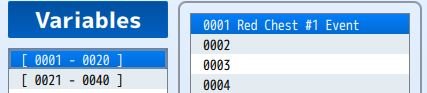
You need to make these two switches. I chose 6 and 7 but they can be whatever you want.
**Note switch 7: I want to set this up so I can set up this up like a tutorial event the 1st time the chest is opened**
Protected download
Step 2:
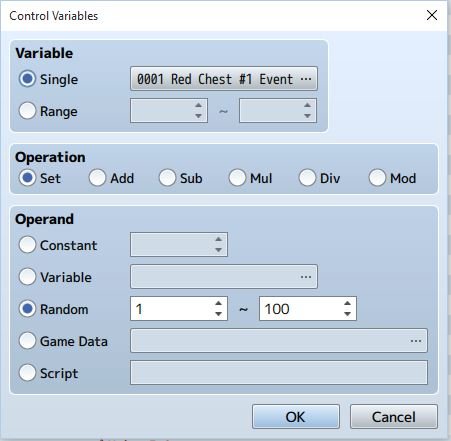
You need to make a control variable.
Protected download
**Note that I made this count a random number between 1 to 100**
**It can be 1 - 300 or 1-1000 whatever you want it to be**
Protected download
Step 3 A:
This is what I set up:
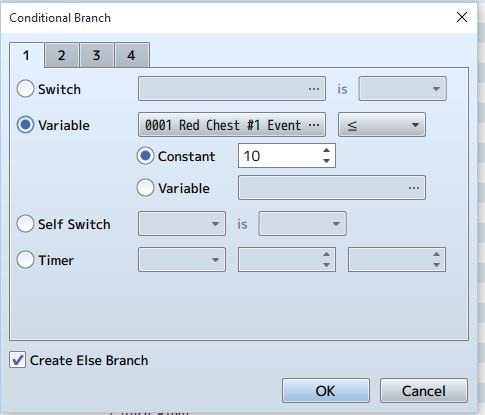
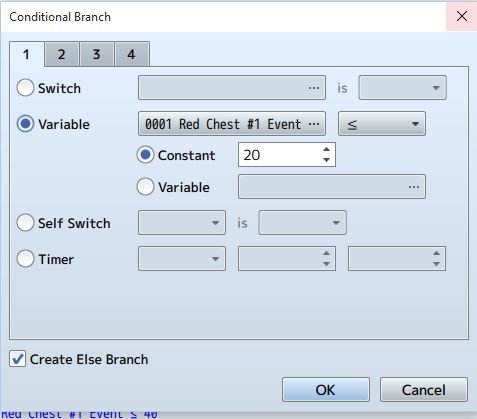
Use a condition branch of the variable
In this example if the random number is equal to less than or greater than 10.
Protected download
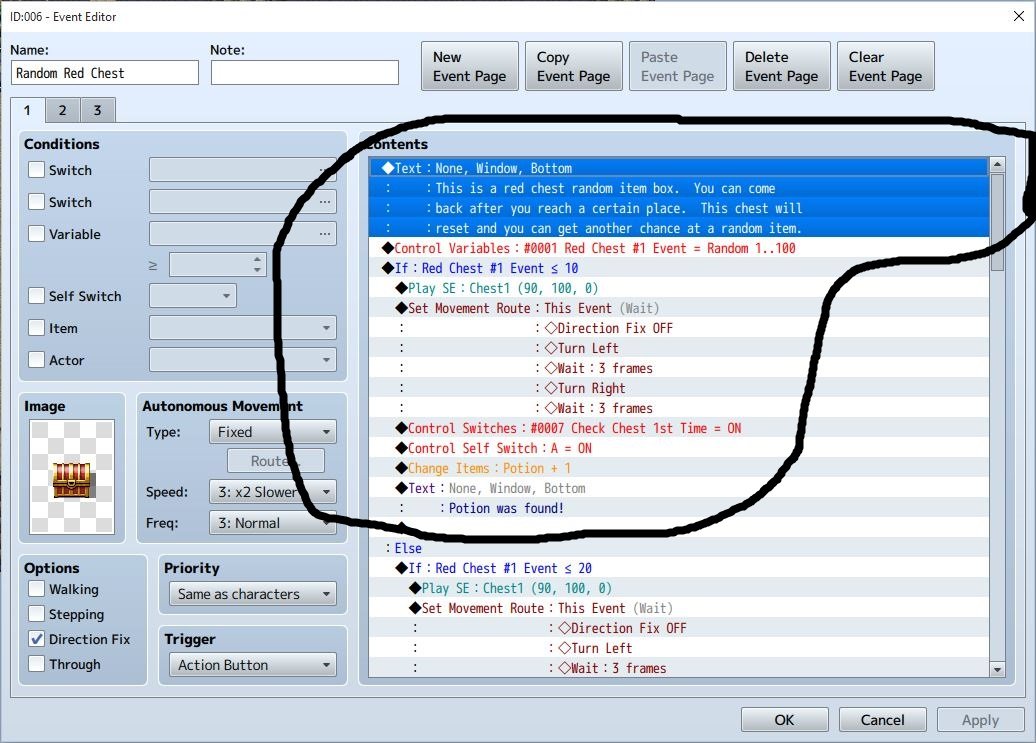
Which now shows in the area I circled
The text is used as a first time opened tutorial letting you know what the chest does.
I will set it up where this shows only one time then goes away.
Step 3B:
Look at the conditional branch that I showed you in Step 3A.
So from this you can see that the 1st time you open the chest you'll get a quick message then
if the Red Chest #1 Event rolls a number Equal to or less than 10. You'll get a potion.
I also turn on the switch shown in Step 1: Check Chest 1st Time.
Protected download
Step 4:
You need to make a conditional branch in the else branch of the last conditional branch using the same variable higher than 10. As shown in Step 3B just under where I circled.
In this case I chose 20. Then follow the steps that gives an item. In this case if the random number is equal or less than 20. You get whatever item that you put as a reward.
**Note that you will need to place the same switches in each conditional branch. It would be best if you copy the 1st conditional branch into the else branch then
change the variables, reward and text.
Protected download
Step 5:
It should be easy now. You can make a conditional branch so it will be equal to or less than 30 or 40 whatever and follow the same steps.
Just make sure you put each conditional branch into the else of the last one you created.
Step 6:
Okay you're making progress. This is the part where you don't want the same message to pop up each time you open the chest and you don't want people to spam
the chest pulling out random items of your choosing at will.
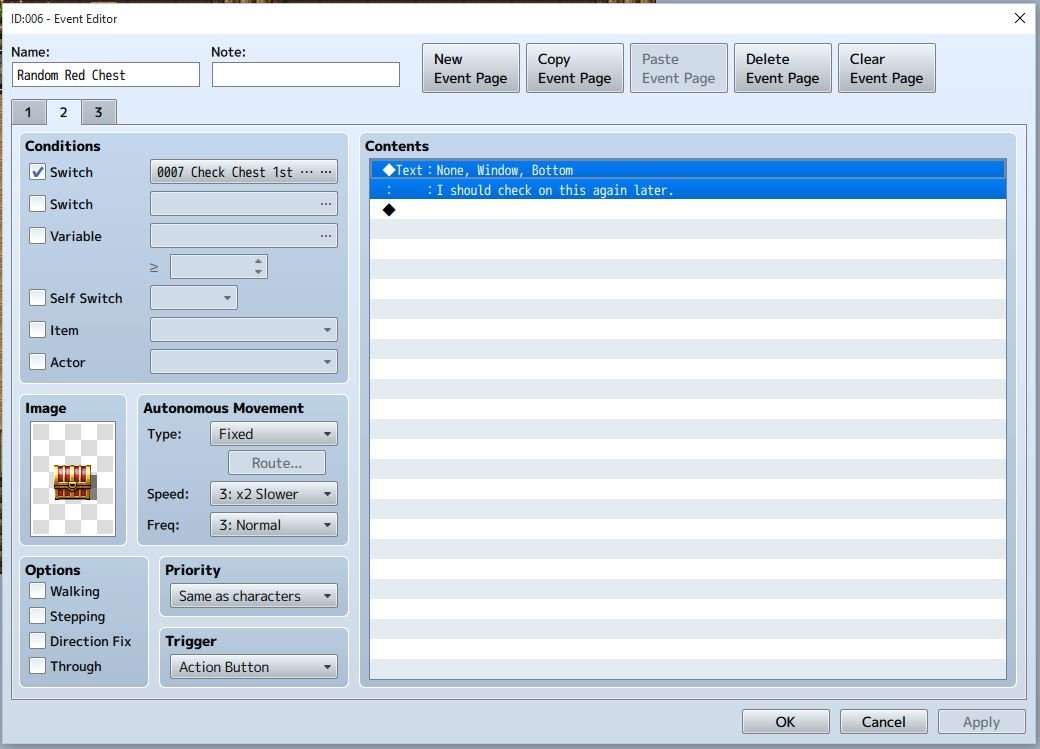
So you make this page. Note that you see the required switch to see this. Check Chest 1st time.
That should kill the 1st page for good.
Protected download
Step 7:
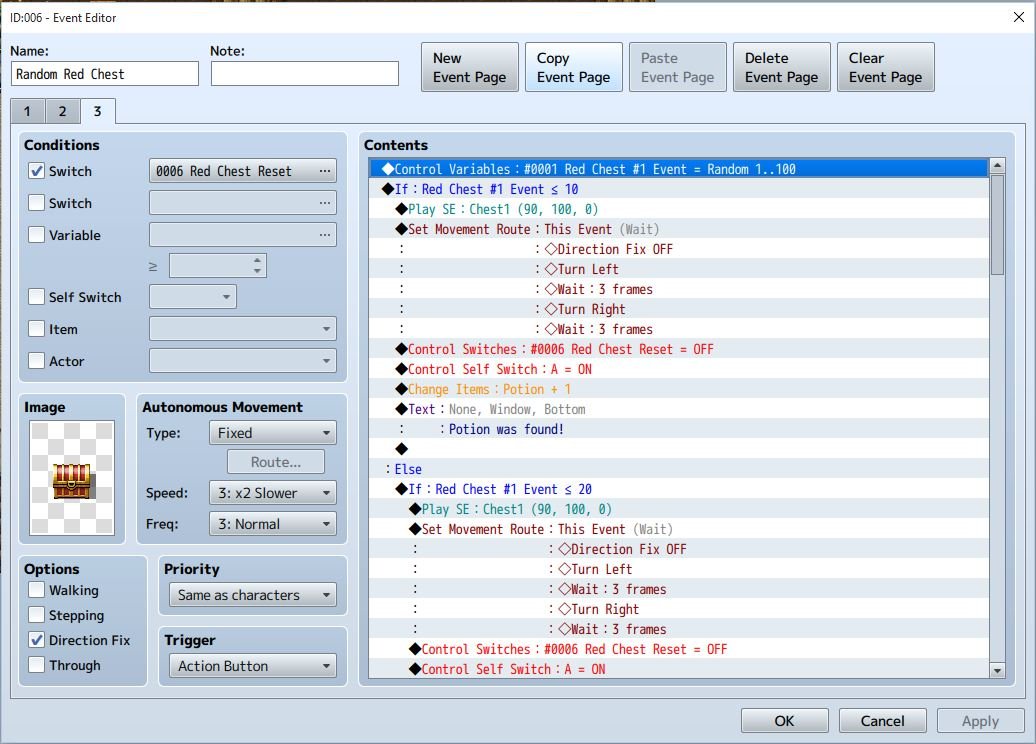
Ofcourse, you didn't want to eliminate the chest from giving out items. so copy and paste the event of the 1st page.
You'll have to do some editing.
1st you elimate the tutorial test. Also the switch Check Chest 1st Time
Also look at the required switch Red Chest Reset(This should keep people from spamming the chest). Also note that you have to turn that of on each conditional branch made.
Protected download
Step 8:
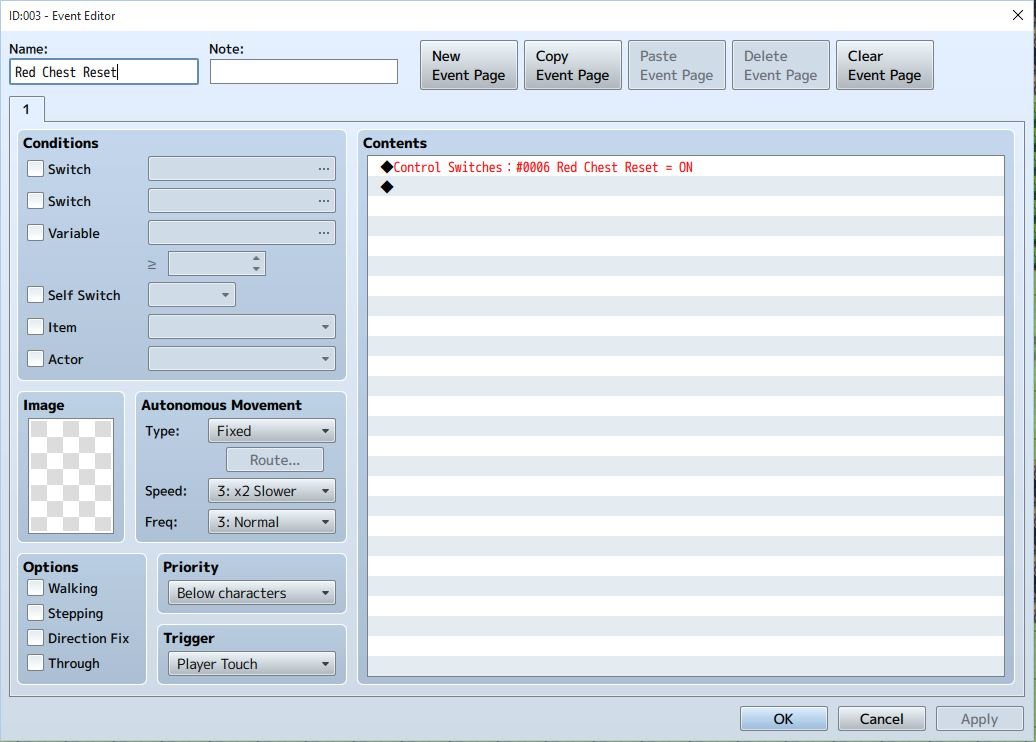
This is an event you can put on the ground without any graphic. You just want to make sure people step on it. You see it turns on the Red Chest Reset switch.
You could put up a message like to go back and check the chest again. But I prefer not letting them know. Or atleast let them figure it out themselves.
This will reset the event to page 3 of the Random Red Chest event.
Protected download
And there you have it. Post or message me if you have any questions.
Protected download
Step 1:
You need to make these two switches. I chose 6 and 7 but they can be whatever you want.
**Note switch 7: I want to set this up so I can set up this up like a tutorial event the 1st time the chest is opened**
Protected download
Step 2:
You need to make a control variable.
Protected download
**Note that I made this count a random number between 1 to 100**
**It can be 1 - 300 or 1-1000 whatever you want it to be**
Protected download
Step 3 A:
This is what I set up:
Use a condition branch of the variable
In this example if the random number is equal to less than or greater than 10.
Protected download
Which now shows in the area I circled
The text is used as a first time opened tutorial letting you know what the chest does.
I will set it up where this shows only one time then goes away.
Step 3B:
Look at the conditional branch that I showed you in Step 3A.
So from this you can see that the 1st time you open the chest you'll get a quick message then
if the Red Chest #1 Event rolls a number Equal to or less than 10. You'll get a potion.
I also turn on the switch shown in Step 1: Check Chest 1st Time.
Protected download
Step 4:
You need to make a conditional branch in the else branch of the last conditional branch using the same variable higher than 10. As shown in Step 3B just under where I circled.
In this case I chose 20. Then follow the steps that gives an item. In this case if the random number is equal or less than 20. You get whatever item that you put as a reward.
**Note that you will need to place the same switches in each conditional branch. It would be best if you copy the 1st conditional branch into the else branch then
change the variables, reward and text.
Protected download
Step 5:
It should be easy now. You can make a conditional branch so it will be equal to or less than 30 or 40 whatever and follow the same steps.
Just make sure you put each conditional branch into the else of the last one you created.
Step 6:
Okay you're making progress. This is the part where you don't want the same message to pop up each time you open the chest and you don't want people to spam
the chest pulling out random items of your choosing at will.
So you make this page. Note that you see the required switch to see this. Check Chest 1st time.
That should kill the 1st page for good.
Protected download
Step 7:
Ofcourse, you didn't want to eliminate the chest from giving out items. so copy and paste the event of the 1st page.
You'll have to do some editing.
1st you elimate the tutorial test. Also the switch Check Chest 1st Time
Also look at the required switch Red Chest Reset(This should keep people from spamming the chest). Also note that you have to turn that of on each conditional branch made.
Protected download
Step 8:
This is an event you can put on the ground without any graphic. You just want to make sure people step on it. You see it turns on the Red Chest Reset switch.
You could put up a message like to go back and check the chest again. But I prefer not letting them know. Or atleast let them figure it out themselves.
This will reset the event to page 3 of the Random Red Chest event.
Protected download
And there you have it. Post or message me if you have any questions.
Protected download
Downloads / Referenced Files
Log in to download
Log in, then follow the RPG Maker Developers Group to see these download links.
Log in to downloadReferenced Images / Attachments
Creator Claims / Removal
If you are the original creator and want this listing reassigned, edited, or removed, join BMMPlay and contact the moderators with proof that matches the original RPG Maker Web profile, linked GitHub, itch.io page, or another public creator identity.
Replies (0)
No replies yet.
0
replies
1
view
Topic Summary
Loading summary...