

Converting parallax tiles into tileset :D
BMM_Archive · July 16, 2026

Original Source
- Original title: Converting parallax tiles into tileset :D
- Original author: wandering-warrior
- Original date: July 6, 2012
- Source thread: https://forums.rpgmakerweb.com/threads/converting-parallax-tiles-into-tileset-d.3036/
- Source forum path: Game Development Engines > RPG Maker Tutorials > Non-Maker Specific Tutorials
Summary
Hi guys, today i am going to show u how to convert parallax tiles into tileset form. I tried converting some and it was not too difficult and It was very useful to me So i thought i'd share with u guys I know what it feels like when someone posts an excellent tileset and when we see, its for parallax mapping so im gonna show u how to convert most of them to tileset form. So lets start. Im using GIMP2. Im going to tell u exactly the same...
Archived First Post
I know what it feels like when someone posts an excellent tileset and when we see, its for parallax mapping so im gonna show u how to convert most of them to tileset form.
So lets start. Im using GIMP2. Im going to tell u exactly the same way i did.
1.) First open gimp2 and open an existing tileset , delete the layer, then add a new layer and select "transparency" in " layer fill type" option.
2.) Now go to image--->configure grid---> and set the width and height to 32 in spacing section only
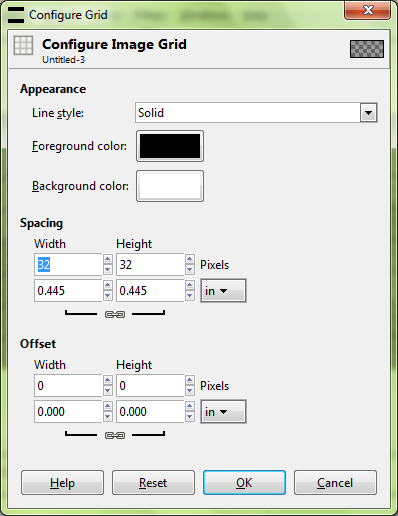
<span style="color: #282828">now go to view<span style="color: #282828"> and click show grid<span style="color: #282828"> and snap grid<span style="color: #282828"> Now u can see the grid (boxes).
3.) Next open the parallax tileset u want and repeat "STEP 2". But this time don't check
SNAP GRID . So that u can select more freely or else u'd b limited to grids. After that just click the "rectangle select" tool in toolbox and draw a rectangle around the tile u want like this,
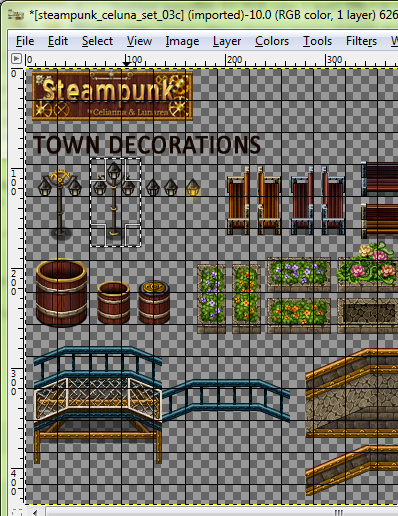
<span style="color: #282828">4.) After u have selected it, Copy it using "ctrl+c" , go to the window u created in "STEP 1" and then draw a rectangle around the box. It should be three boxes high as u can see the "post" is three box big. U'll feel while selecting that as soon as u reach 3 boxes and go a little further it automatically stops.... and the selection remains to 3 boxes... THAT"S because u have checked the option snap to grid

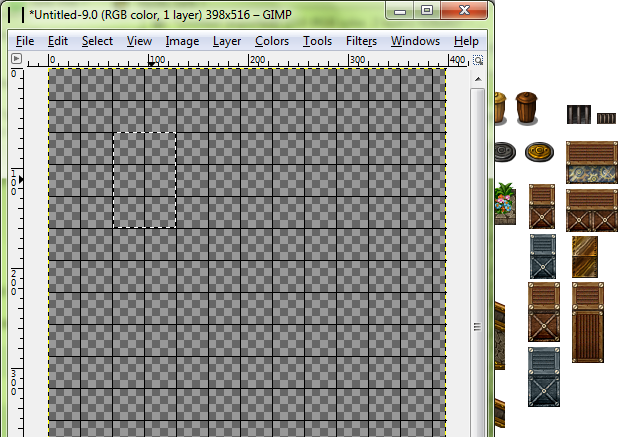
Some times when selecting bigger tiles like this
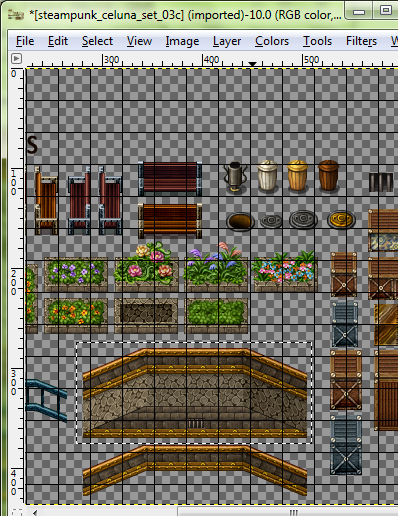
U'll have to draw a large rectangle consisting several small boxes
5.) then just press "ctrl+v" the image will be pasted and there will be an outline of the picture like this
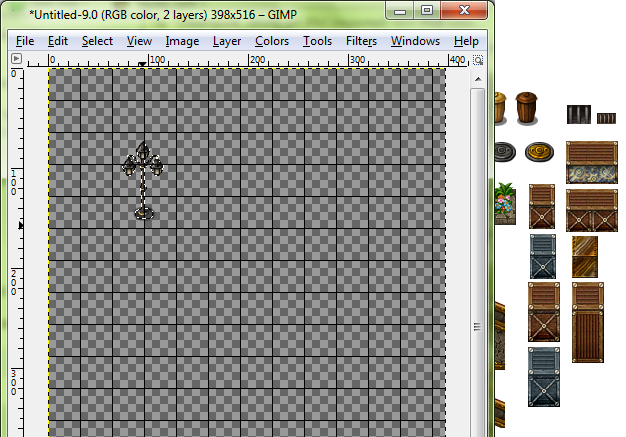
<span style="color: #282828">Now the tile is in tileset form.... IF u are still experiencing alignment problems like a line over or below the tile then continue to step 6
<span style="color: #282828">6) If u are facing problems after the above steps then disable <span style="color: #282828">SNAP TO GRID<span style="color: #282828"> option and manually align it. After completing step 5 u'll see that there is an outline of the picture... (see the above picture). Now select the "MOVE TOOL" and move the picture to make sure that the picture is inside the 6 small boxes ( which we selected earlier in step 4). If the picture isn't in the box then move it until its aligned in the grid. In this case we don't need the move tool as the picture is already aligned in the grid. As long as u align it right u'll have no problems.
To clearly explain move tool i 'll give another example, this time with a big selection
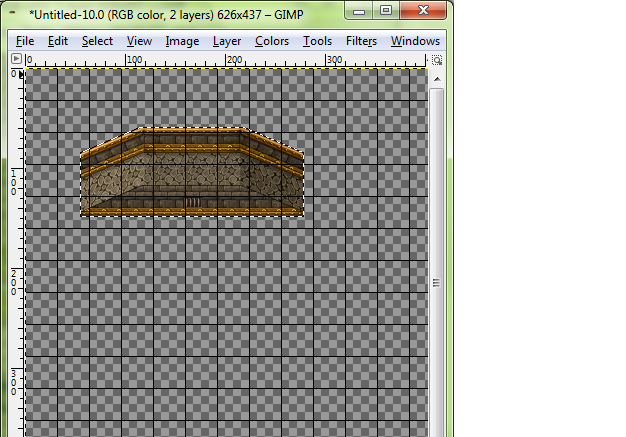
Now as u can see that the sides of the picture is not properly aligned. So i'll use the move tool and now it'll look like this,
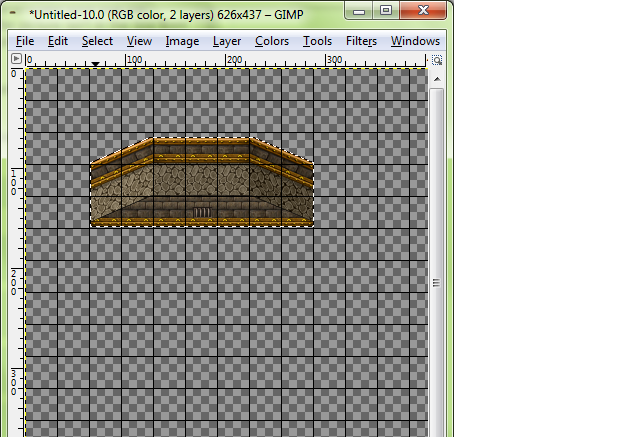
<span style="color: #282828">Note one thing, i suggest leaving space when pasting tiles like this, i u are facing problems even after <span style="color: #282828">SNAP GRID<span style="color: #282828">option is checked
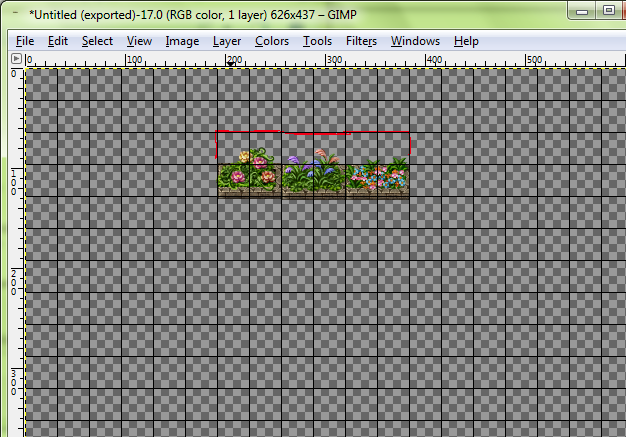
Because if u don't want to leave space, then u'll have to be very accurate, or else the pictures will get mixed and you'll see pictures with their side part overlapped by the second pic.
And also note that pictures like this are smaller but they are covering the upper 3 boxes ( outlined by red) so if u paste anything above this pic, be careful that the second picture doesn't go into the 3 boxes. Even if a small line will go into that box u'll see it while pasting the tiles in the editor. So....yeah... be careful about that
If u follow the steps above and align it properly, u'll get it right. I did it this way and it worked for me
Thanx for reading :lol:
<span style="color: #282828">EDIT:- It works for the animation tiles A1-A5 if u place the same type of tiles at their default position and
<span style="color: #282828">as long as the picture completely fills the grid or else u see the editor's background.... But u won't have that problem if u have checked snap to grid but still if it shows the background... use the "scale layer" tool on that selected picture and scale it until its completely in the grid
<span style="color: #282828">Sorry guys i didn't know about this function uptill now.... After u select show grid..... In the same column below it is SNAP to Grid.. Check that also... What it will do is automatically align the picture to grid so u won't need to align it urself....
Downloads / Referenced Files
RPG Maker Web attachments are mirrored locally when available. Other external links remain hosted by their original creator or third-party service.
- Local mirror: 177-e3b82649e32f0c855fad1f10e58676a4.png
SHA-256:4729723bdffd392995825f8bf0b6b255af709f542fad8d8fe5a9acc6f29b03e0
Original attachment URL: https://forums.rpgmakerweb.com/attachments/grid-png.552/ - Local mirror: 178-39123859354fb108ae8ce9a48cd6b8a6.png
SHA-256:3218d384260288fb9f8441cc194bb8251433444c9cf2b7bcbd331762662915e6
Original attachment URL: https://forums.rpgmakerweb.com/attachments/selection-png.553/ - Local mirror: 179-e6b71f4d4120e17c20f9543d05108547.png
SHA-256:5be7f6068c4293e46b68864c8e0be518724aaca3e1c7d40010e5a4aa8193a1a1
Original attachment URL: https://forums.rpgmakerweb.com/attachments/grid1-png.554/ - Local mirror: 180-076cb58ae57805ce283607ee9a085cd6.png
SHA-256:3320e6a7e3e97cba04c7f3211dec58a9b70b4baa282acedb884e2633f12157ba
Original attachment URL: https://forums.rpgmakerweb.com/attachments/big-selection-png.555/ - Local mirror: 181-f128672c2685abf6b3635d160e6b55e3.png
SHA-256:9ba2572cddf78df24a662a205855f6ff1feee4ee9c9626b726b8f8824e4ca51e
Original attachment URL: https://forums.rpgmakerweb.com/attachments/outline-png.556/ - Local mirror: 183-383df5e190d5fa05607abdff934798dd.png
SHA-256:68ef4f685893fcbf41f3b2e8214519ce1bb4f7b304b50842bea41c5f68eff60f
Original attachment URL: https://forums.rpgmakerweb.com/attachments/not-aligned-png.559/ - Local mirror: 182-0705b2a9d9ee7780cd896500d834bcaf.png
SHA-256:56f4569856e6a440e1a917d70493ef8590b95d824703e001f54932b5fc901caa
Original attachment URL: https://forums.rpgmakerweb.com/attachments/properly-aligned-png.558/ - Local mirror: 184-0b4fa9721f61b992c0d7bfb7698c5b2c.png
SHA-256:b45b1924c6fb28fb493b6cfaaddf468dbb136693220787b60f6bc7d8b40947e2
Original attachment URL: https://forums.rpgmakerweb.com/attachments/leave-space-png.560/
Referenced Images / Attachments
Creator Claims / Removal
If you are the original creator and want this listing reassigned, edited, or removed, join BMMPlay and contact the moderators with proof that matches the original RPG Maker Web profile, linked GitHub, itch.io page, or another public creator identity.
Replies (0)
No replies yet.
Topic Summary
Loading summary...