Preserved forum archive. This topic stores the original first post and locally mirrored RPG Maker Web attachments when available. It is posted by the BMMPlay archive account, not by the original creator.
Source forum path: Game Development Engines > RPG Maker Tutorials > RMVX Tutorials
Summary
Ghostly Events Have you ever been curious how to make sprites look like they're transparent or how to make a ghost event? Plus, I apologize if there's already something similiar out there, but I just stumbled onto this while trying to figure out how to make people-ghosts without needing to individually event each one. Here's a possible way. 1) Open your Database up and navigate to the Common Events Tab. Create a common event. Call it whatever you would like. I called mine "Ghostly-State".
Archived First Post
Ghostly Events
Have you ever been curious how to make sprites look like they're transparent or how to make a ghost event? Plus, I apologize if there's already something similiar out there, but I just stumbled onto this while trying to figure out how to make people-ghosts without needing to individually event each one.
Here's a possible way.
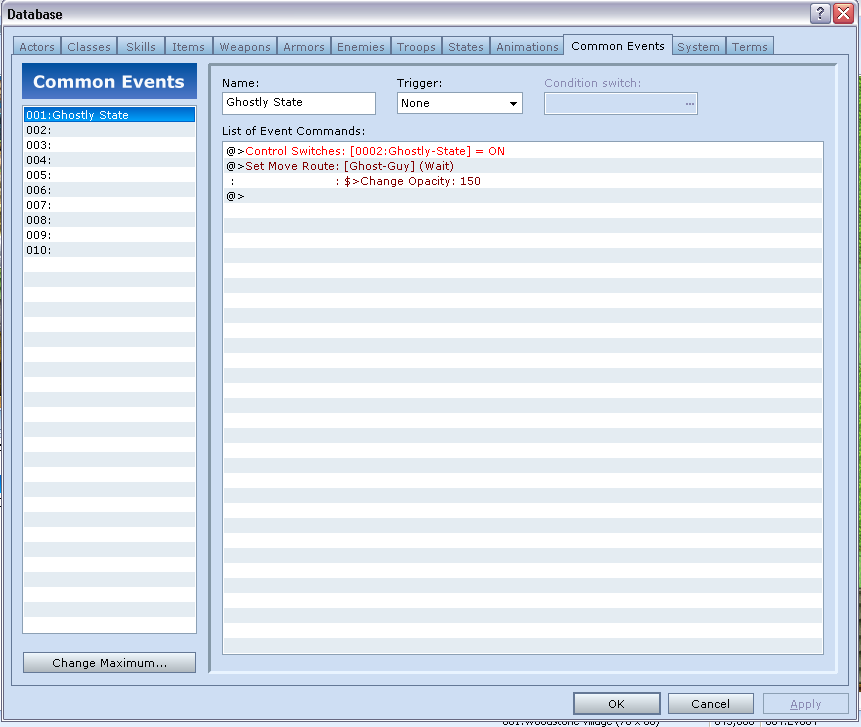
1) Open your Database up and navigate to the Common Events Tab. Create a common event. Call it whatever you would like. I called mine "Ghostly-State".
The Trigger is set to None.
2) Inside the common event, set up a switch, name it "Ghostly State" (or something similiar), and turn it "ON"
(Oh, yes, you will need to be returning to this Common Event for every time you want to 'add' an event that will become a ghost.)
That's it for the Common Event.
Here's a screenshot of how it may look, more or less.
Protected download
Alright, moving on.
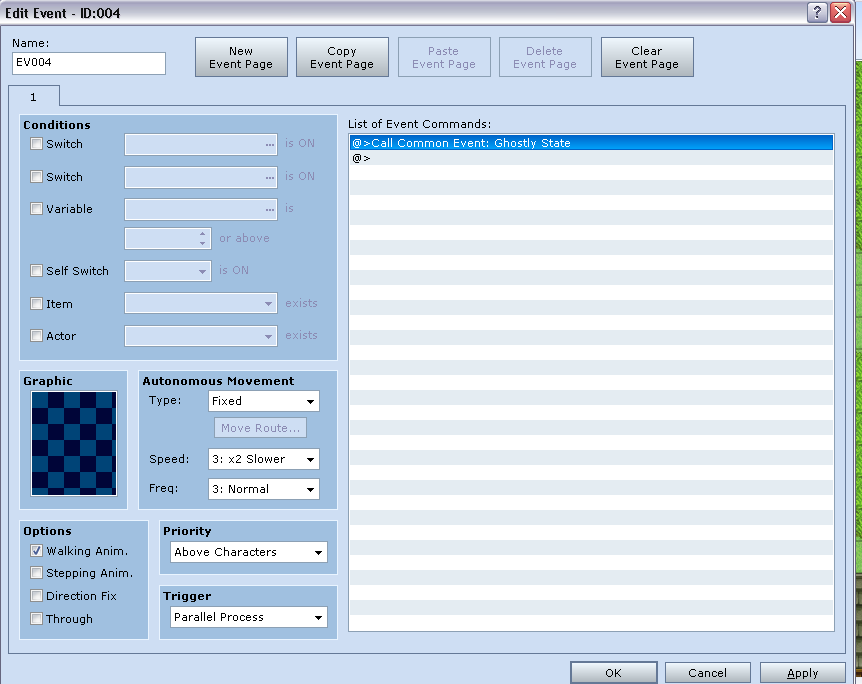
3) Create a blank Event and stick it somewhere on the map that you will be 'enabling' any ghosts to exist. The settings are as follows:
Priority: Above Characters (This should be stuck somewhere the character can't really access anyway.)
Trigger: Parallel Process
And for the Event Commands -- It's very simple. Just go to the first Tab in the Event Commands - and search for Flow Control - and click on "Call Common Event". Since you set up a common event called "Ghostly State" or something like it. Pick that.
Click Apply and OK. That's pretty much it for this event.
Here's the screenshot of this event:
Protected download
Btw, if you do notice an additional event "Ghost Guy" in the screenshot - I'm getting to it in a second.
4) Next, we create a ghost event.
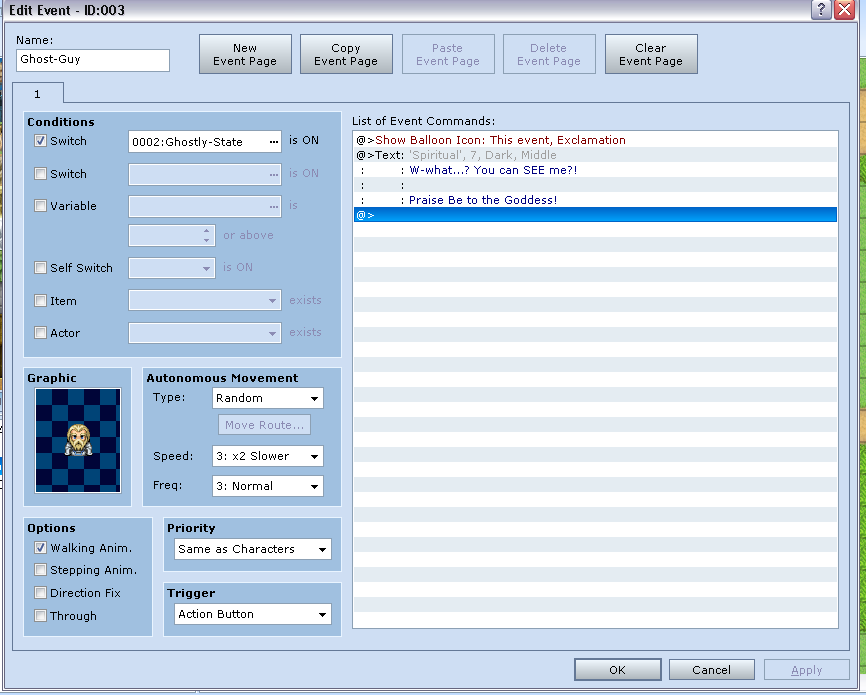
We make a new event. Select an appropriate graphic you want to make a ghost with. In this particular event, I went with "Spiritual" and picked a guy with a white beard. To make it easier for you to 'reference' this event inside the Common Event, I'd suggest naming each event you want to become ghosts. I named this event "Ghost-Guy"
The usual settings apply for the event, except:
Movement: "Random"
Priority: Same as Characters (After all, you may want your ghosts to be able to talk to you)
Trigger: Action Button
Toggle a Switch to "Ghostly-State" (or however you named the switch you want to enable 'ghostiness')
You can set up how you interact with the character however you want.
I personally did it this way.
Insert: Baloon Animation (Exclaimation!)
Insert: Text: "W-what? You can SEE me?!..."
(Dim Background/Middle, and picked the appropriate matching faceset from Spiritual)
That's it for the Ghost Event. Click Apply/OK.
Here's a screenshot of how it looks:
Protected download
5) Now, we return to the Common Event again.
Here is where it gets kinda fun. All the events you have as people, animals, etc on the map that you want to 'make' ghosts... will be referenced here.
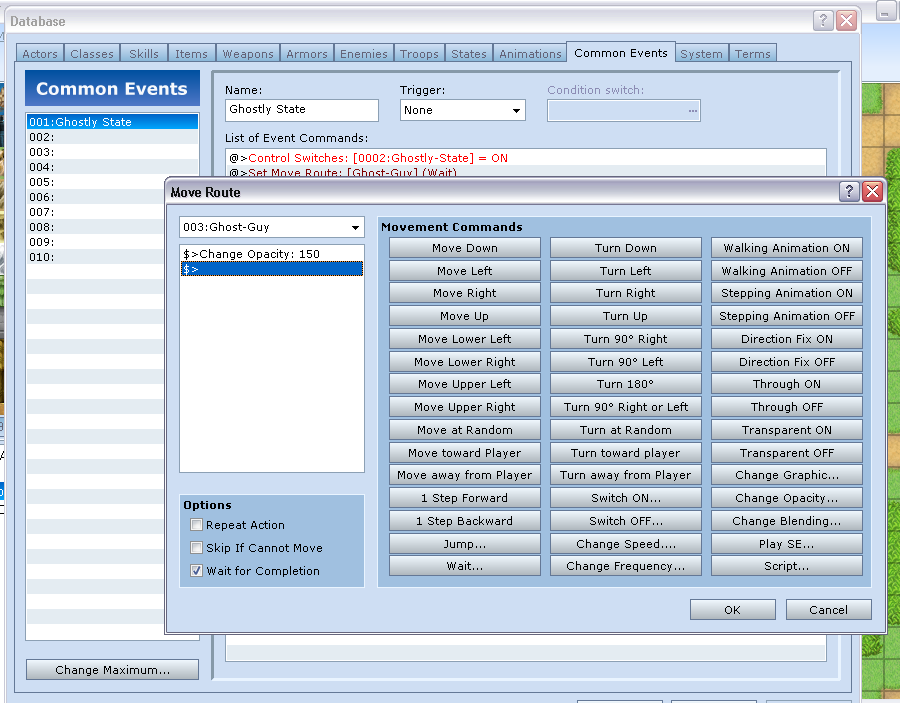
Under the "Control Switch: Turn Ghostly-State: ON" Insert:
(You'll find it under Tab 2: Change Move Route)
Basically create one for every event you will be using this.
Change Move Route:
The Target in the drop down menu should be Player by default. This should be changed to the NAME of your event. (Remember when I said you might be referencing to your events that you wanted to make ghosts, earlier? This is where your names come into effect.)
Change Opacity: 150.
Wait should be ticked off.
Click Apply/OK.
...
Repeat for every event you've created.
Here's the last screenshot of how it looks:
Protected download
That's about it. Hope it's informative.
Enjoy.
If you have some questions, let me know.
Downloads / Referenced Files
Log in to download
Log in, then follow the RPG Maker Developers Group to see these download links.
Common Event.pngParallel Process Event.pngGhost Event.pngOpacity Event.png
Creator Claims / Removal
If you are the original creator and want this listing reassigned, edited, or removed, join BMMPlay and contact the moderators with proof that matches the original RPG Maker Web profile, linked GitHub, itch.io page, or another public creator identity.