

VXACERSTW: Reedo's Scrolling Text Window
BMM_Archive · July 15, 2026

Original Source
- Original title: RSTW: Reedo's Scrolling Text Window
- Original author: Reedo
- Original date: September 25, 2013
- Source thread: https://forums.rpgmakerweb.com/threads/rstw-reedos-scrolling-text-window.18424/
- Source forum path: Game Development Engines > Ruby Game System (RGSS) Scripts > RGSS3 Scripts (RMVX Ace)
Summary
Reedo's Scrolling Text Window (RSTW) Version 1.0 September 24, 2013 By Reedo
Archived First Post
Version 1.0
September 24, 2013
By Reedo
References
None. This is an original script by Reedo.
However, this idea came about after I read this script request, having just finished work on my quest journal scene. So I decided to dig deeper into Window classes and this is the result.
Description
This script provides a simple window that supports a large amount of scrolling, formatted text (that is, text which supports the game's slash-commands for color, font size, etc.). The text is loaded from a plain text file and offers a couple of different processing options. The script also include a new scene, available from a menu option, which shows a full-screen text window and the loaded text file. The user can scroll through the text at two different speeds, or jump to the top or bottom.
The scene can load text in "block mode" allowing the script to "count paragraphs" and only display a certain number of text-blocks based on a game variable or scene property. In this way it is very easy to write out a series of text entries for display in the scene and use a game variable to control how many of the entries are actually shown.
Features
- New scene with single-window scrolling text area.
- Menu option for displaying scene, or various script calls.
- Scene loads plain text file automatically when shown.
- Text file supports game message slash-command mark-up.
- Text is scrolled using up/down arrows, sped up with "Z" key (A button),
and can jump to top or bottom with page up (L) and page down ®. - Text can be loaded in "Block mode" to only read up to a specified
number of text blocks (paragraphs, separated by a blank line). - Block mode index (max blocks shown) can be controlled automatically
via an associated game variable value, or by script using a static
property on the scene itself. - Scene can always be shown "own demand" via script calls with the
supplied message text, even if a text file was loaded. - Text files can be up to 15K or so with reasonable performance.
(the upper limit of text size is not fully tested) - The Window_Reedo_ScrollText class can be reused by other scenes.
- The Scene_Reedo_ScrollText class can be used as a basis for other scenes.
Known Bugs
None at this time.
Please report any bugs found.
Requirements
Optional text file containing text to display.
Installation
Plug-and-Play
Just insert a new script directly under Materials, name it RSTW, and paste in the script code.
Compatibility
Should be compatible with most other scripts.
Configuration
There are just a few user options that you can modify to determine how you want to use this script.
Set USE_MENU_COMMAND true or false to enable the menu command for showing the scene. If you don't want to use the in-game menu command, you can also call the static method Scene_Reedo_ScrollText.display(text) to show the scene immediately with the provided text, or use the standard script commands for loading a new scene and the show_text(text) method on the scene instance.
The MENU_COMMAND_NAME option sets the word displayed in the game menu when the use menu option is set to true.
Setting LOAD_ON_START to true tells the script to execute the specified processing mode whenever the scene is shown. Since the text is loaded whenever the scene is shown, it would be easy to have a script that modifies the text file at run-time to change the displayed contents.
The LOAD_MODE option must be set to one of the RSTW_LoadMode values of NONE, ALL, BLOCK, or CUSTOM.
The NONE option will simply skip any file loading, while the CUSTOM option will execute the read_custom() method on the scene. This method does nothing in the base scene, but another custom scene could inherit this one and make use of the custom text loading feature.
The ALL option will simply read all of the text in the text file and load it into the scene. This text is easily edited in Notepad and can parse the standard slash commands for colors, font size, word replacement, etc.
The BLOCK option is similar to the ALL option, but the loading process counts blank lines in the text file to find individual paragraphs, or "blocks", of text. The block index value is then used to determine how many of the available blocks to actually show in the scene. This allows the contents of the text file to easily unfold as the game progresses.
For the BLOCK_INDEX_VARIABLE value, you have two choices. You can provide the Id number of a game variable and then the script will automatically use the value of this variable as the block index. Or you can set this value to nil and the scene will use its own internal block index (there is only one block index for all scenes) that you manipulate via script commands.
Set the TEXT_FILE option to the name and path of the text file to load. The Data folder of your game project is a good place to put this file.
The FILE_READ_ERROR message is displayed in the scene whenever there is an error opening or processing the text file. You can set this message to whatever you choose because hopefully it will not be shown in your game.
Finally you can adjust the WINDOW_SCROLL_SPEED if desired. Note that this is the "fast" speed, so the normal scroll speed is half of this value.
Example Text File
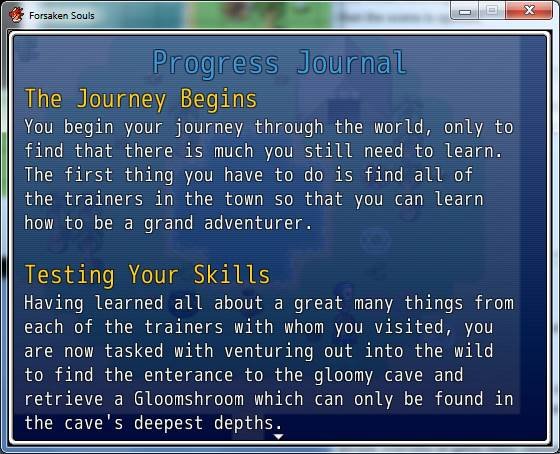
Here is an example of what a text file might look like. This file has multiple blocks, each representing a stage of progress within a game. The script that uses this file would have a game variable set to control the progress. As the value of the variable increases from zero, additional blocks of the text file are shown when the scene is opened.
Script
Here is the complete RSTW script:
The Window_Reedo_ScrollText class is a generic window for scrolling text. This window is designed with the same pattern as other game windows and can be easily reused by other scene scripts. It is intended for use by other scene developers and the functionality of the included scene is a usable demonstration of how the window can be used.
The Scene_Reedo_ScrollText class is a basic custom scene implementation which can be extended or used as a model for other custom scenes. Additional windows can be added and the instance of Window_Reedo_ScrollText can be resized and repositioned to create a composite window scene.
The two simple overrides of game menu classes also lay the foundation for easy addition of other custom menu options.
Summary
With this script you can easily add a scrolling text window for showing general information or revealing a story line using an in-game control variable or script commands. The window and scene classes in this script are also easily reused in other custom scenes.
As always, comments and suggestions are welcome.
Features Mentioned
- New scene with single-window scrolling text area.
- Menu option for displaying scene, or various script calls.
- Scene loads plain text file automatically when shown.
- Text file supports game message slash-command mark-up.
- Text is scrolled using up/down arrows, sped up with "Z" key (A button),
- and can jump to top or bottom with page up (L) and page down ®.
- Text can be loaded in "Block mode" to only read up to a specified
- number of text blocks (paragraphs, separated by a blank line).
- Block mode index (max blocks shown) can be controlled automatically
- via an associated game variable value, or by script using a static
- property on the scene itself.
- Scene can always be shown "own demand" via script calls with the
- supplied message text, even if a text file was loaded.
- Text files can be up to 15K or so with reasonable performance.
- (the upper limit of text size is not fully tested)
- The Window_Reedo_ScrollText class can be reused by other scenes.
- The Scene_Reedo_ScrollText class can be used as a basis for other scenes.
- Known Bugs
Downloads / Referenced Files
RPG Maker Web attachments are mirrored locally when available. Other external links remain hosted by their original creator or third-party service.
- Local mirror: 2337-3aa022f155e0b06deca5971ecd64ddbf.jpg
SHA-256:3a827f77d967500897f8627eeb699b244213e5f581696227e7a82cd42494914e
Original attachment URL: https://forums.rpgmakerweb.com/attachments/rstw1-jpg.8402/
License / Terms Note
################################################################################# RSTW - Reedo's Scrolling Text Window## Version 1.0## September 24, 2013## By Reedo################################################################################# REFERENCES#### None. This is an original script by Reedo.################################################################################# FEATURES#### + New scene with single-window scrolling text area.## + Menu option for displaying scene, or various script calls.## + Scene loads plain text file automatically when shown.## + Text file supports game message slash-command mark-up.## + Text is scrolled using up/down arrows, sped up with "Z" key (A button),## and can jump to top or bottom...
Referenced Images / Attachments
Creator Claims / Removal
If you are the original creator and want this listing reassigned, edited, or removed, join BMMPlay and contact the moderators with proof that matches the original RPG Maker Web profile, linked GitHub, itch.io page, or another public creator identity.
Replies (0)
No replies yet.
Topic Summary
Loading summary...