

MV Menu Filters (currently Item Menu only)
BMM_Archive · July 15, 2026

Original Source
- Original title: MV Menu Filters (currently Item Menu only)
- Original author: BurningOrca
- Original date: July 17, 2024
- Source thread: https://forums.rpgmakerweb.com/threads/menu-filters-currently-item-menu-only.170377/
- Source forum path: Game Development Engines > RPG Maker Javascript Plugins > JS Plugins In Development
Summary
Introduction: I guess if you have ever played a game with a large inventory (for example any Yu-Gi-Oh game or an Atelier game) I guess you were always grateful for these games to have some kind of filter option, so you could find the item you were searching for more easily. RPG Maker MV does not provide this option by default, so let's add it. The plugin is not particularly easy to use and requires some Javascript and Engine knowlegde, but I will be glad to help in implementing your...
Archived First Post
I guess if you have ever played a game with a large inventory (for example any Yu-Gi-Oh game or an Atelier game) I guess you were always grateful for these games to have some kind of filter option, so you could find the item you were searching for more easily.
RPG Maker MV does not provide this option by default, so let's add it.
The plugin is not particularly easy to use and requires some Javascript and Engine knowlegde, but I will be glad to help in implementing your required filters.
Terms of Use:
- This plugin may be used and redistributed with both free and commercial games.
- This plugin may be redistributed only for free otherwise, but I would appreciate linking back to the original thread instead.
- You may take code from this plugin for your own free plugins, but not for commercial plugins.
- You may alter this plugin, but BurningOrca has still to be mentioned in the author section. You may not rename this plugin. You may redistribute the alterations for free.
- You may port this plugin to MZ.
The plugin basically adds the following pop-up window, which can be activated by a certain button press on the keyboard or gamepad to the Item Menu while the Item Window is active:
Everything about this window can be adjusted in plugin parameters. The screenshot shows the default settings for this window.
So let's go over them:
Filters Pop-Up Window Properties:
Defines the width and the number of filter group rows shown at the same time in the window. However still more filter groups can be defined.
Headline and Colors:
Next up we have the head line text for the filter window and some colors.
The first color is for the headline.
The next color is for the filter group names. (The blue one shown in the screen shot above).
The next one this for the "Apply filters" and "Reset filters" commands.
Some terms:
Here you can adjust how the None option in the filter groups is called and how the Apply and Reset commands are called.
Filter Status Text:
You can adjust how many pixels of space the status text of each filter group takes up.
The filter groups:
Each group is a row on the filter window and here is where the javascript comes into play as the logic of the filters has to be defined in the plugin parameters:
Each group consists of:
- A name
- A help text for the item menu help window, to further describe the filters functionality
- A Group Logic, which is javascript code that is valid for every single option within the filter.
- And the following three fields which all exclude each other:
- Javascript Options: Allows to enter either a new array containing all the available options or the name of an existing array from the database, e.g. '$dataSystem.elements' or '["No Element"].concat($dataSystem.elments.slice(1));' which will for example show the names of the elements from the dabase. Requires Group Logic to be set. The Javascript Code within Group Logic has access to the following parameters:
- item: The item, weapon or armor to be filtered
- id: The index of chosen filter option.
A good group logic for the element filter would for example be:
JavaScript:if( DataManager.isItem(item) ) // When item, check if damaging element is the given element return item.damage.elementId === id; else // When Armor or Weapon check if it has traits to change Attack Element or Elemental Weakness to the given element return item.traits.some(trait => (trait.code === Game_BattlerBase.TRAIT_ATTACK_ELEMENT || trait.code === Game_BattlerBase.TRAIT_ELEMENT_RATE) && trait.dataId === id);
- Filter Options: An array of filter options, each with their own name, help text and javascript logic. If these are filled then Group Logic must be empty. The javascript function here has only access to the parameter item.
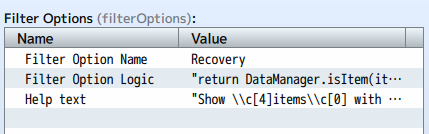
JavaScript:return DataManager.isItem(item) // It is an item && ([3,4,5,6].contains(item.damage.type) // It has either Recovery or drain damage or positive recovery effect on HP or MP || item.effects.some(effect => (effect.code === Game_Action.EFFECT_RECOVER_HP || effect.code === Game_Action.EFFECT_RECOVER_MP) && (effect.value1 > 0 || effect.value2 > 0)));
- Allow user entry: When set to true, then this filter does not have any options and instead will show a name entry window similar to the actor name entry window when the player clicks on the filter. This will use the group logic and the id field will then contain the search string instead of a number.
JavaScript:return item.name.includes(id);
- Javascript Options: Allows to enter either a new array containing all the available options or the name of an existing array from the database, e.g. '$dataSystem.elements' or '["No Element"].concat($dataSystem.elments.slice(1));' which will for example show the names of the elements from the dabase. Requires Group Logic to be set. The Javascript Code within Group Logic has access to the following parameters:
Filter menu button:
The button to be pressed on keyboard and/or gamepad to open the filter pop-up window when the item window is active.
Button help window:
This parameter is blank by default, which means now button help window is shown to inform the user about the button to be pressed.
You can double click on this entry to created the defaults as shown above. For gamepads please create an icon of the button you use and replace the default of 89 in the parameters.
The default options place the window below the item window, with the same width as the item window. Also when the item window gets activated/deactivated its height gets dynamically adjusted.
The window will display the same text as the head line text of the filters pop-up window.
Compatibility:
I found no problems with YEP_ItemCore yet.
Also the filter entry window works with YEP_KeyNameEntry.
This may be incompatible with my sorting plugin I've uploaded to the forum years ago, because both create a key help window seperately from each other.
Possible future extensions (if I feel motivated):
Add the feature to the Shop Sell Window
Add the feature to the Shop Buy Window
Add the feature to the Item Window in Battle
Maybe even create separate filters for the Skill Menu and Skill Window in Battle
Make it compatible with my sorting plugin.
Remarks:
As I was asked for help with previous plugins of mine via private conversations, I would like to ask you to please ask questions directly under this thread or create a seperate help topic instead, as other people might have the same problem and won't benefit from the private conversation! Also if I'm not around fellow developers might still be able to help you in this way.
The applied filters will be reset when switching the category.
The filter options are allowed include color coding and icons, but only at the start of the text, not in between and not at the end.
Features Mentioned
- The plugin basically adds the following pop-up window, which can be activated by a certain button press on the keyboard or gamepad to the Item Menu while the Item Window is active:
- "lightbox_close": "Close",
- "lightbox_next": "Next",
- "lightbox_previous": "Previous",
- "lightbox_error": "The requested content cannot be loaded. Please try again later.",
- "lightbox_start_slideshow": "Start slideshow",
- "lightbox_stop_slideshow": "Stop slideshow",
- "lightbox_full_screen": "Full screen",
- "lightbox_thumbnails": "Thumbnails",
- "lightbox_download": "Download",
- "lightbox_share": "Share",
- "lightbox_zoom": "Zoom",
- "lightbox_new_window": "New window",
- "lightbox_toggle_sidebar": "Toggle sidebar"
- Everything about this window can be adjusted in plugin parameters. The screenshot shows the default settings for this window.
- So let's go over them:
- Filters Pop-Up Window Properties:
- Defines the width and the number of filter group rows shown at the same time in the window. However still more filter groups can be defined.
Downloads / Referenced Files
RPG Maker Web attachments are mirrored locally when available. Other external links remain hosted by their original creator or third-party service.
- Local mirror: 290749-e588415a5873db3b027719c5d829f277.png
SHA-256:8bc738ab1894ce454b8c44efc9ab0174048487de9eb7fefc22f4928737eb0d81
Original attachment URL: https://forums.rpgmakerweb.com/attachments/1721196452907-png.311669/
License / Terms Note
Terms of Use: This plugin may be used and redistributed with both free and commercial games. This plugin may be redistributed only for free otherwise, but I would appreciate linking back to the original thread instead. You may take code from this plugin for your own free plugins, but not for commercial plugins.
Referenced Images / Attachments
Creator Claims / Removal
If you are the original creator and want this listing reassigned, edited, or removed, join BMMPlay and contact the moderators with proof that matches the original RPG Maker Web profile, linked GitHub, itch.io page, or another public creator identity.
Replies (0)
No replies yet.
Topic Summary
Loading summary...