

Door popup windows
BMM_Archive · July 15, 2026

Original Source
- Original title: Door popup windows
- Original author: Heirukichi
- Original date: November 27, 2016
- Source thread: https://forums.rpgmakerweb.com/threads/door-popup-windows.71543/
- Source forum path: Game Development Engines > RPG Maker Tutorials > RMVXAce Tutorials
Summary
Hello community, I am writing this tutorial fundamentally because I did something very similar while answering a post and I thought that my answer could be transformed into a tutorial with ease. In this tutorial I am going to explain how to create popup windows. I will focus on how to create them for doors but you can apply them to any event that works more or less in the same way (such as quests characters for example). What we are going to do is an event that looks like...
Archived First Post
What we are going to do is an event that looks like this:
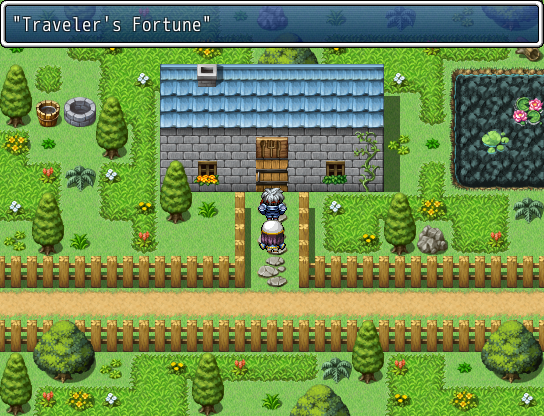
To achieve this we need absolutely no script at all. Everything will be done using events. Now you are probably bored about my premise so...let's step into it.
First step: door creation
Once you created your door copy your event page and duplicate it. This way you end up having two identical pages. Since we don't need two identical pages we are going to delete everything in the first page contents (only in the contents! do not use clear page or it will delete everything!). What's this page for will be explaned in the next step, don't worry about it, for now just leave it blank.
Note: if you decided to create your own door event be sure to set your first page priority to "Same as Characters" and trigger to "Player Touch".
Now that we have our door event we can proceed to the next step.
Second step: popup window
There are few things we need to achieve that:
- Two variables to store player map X and Y coordinates (of course if the player moves we want our popup window to disappear...we don't want it to stay there forever, right?)
- A switch to tell the game that our popup window is being shown and to pass that information to other events
- A variable to create our popup window and access it from other events.
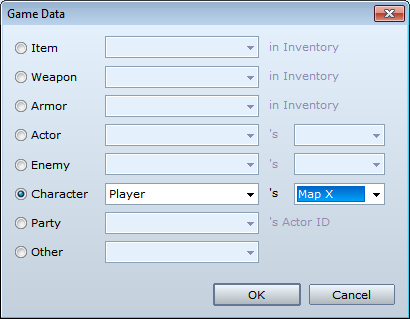
The first point is easy to achieve. Add new event command and select "Control Variables" then select a variable and set it to be equal to Game Data > Player Map X.
If you have never stored player coordinates into a variable before nor used Game Data in your Control Variables command your game data window should look like this:
The final look of your Control Variable command should be this one:
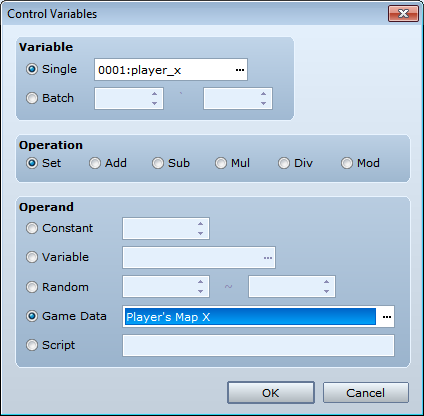
Now you have to do the same with another variable where we are going to store player's map Y.
After setting up our variables let's add another Event Command to turn on a switch. Up to you which switch you want to use, just remember it's ID. The same goes for your variables as well.
Note: In this tutorial I am going to use Variable 1 for player X and Variable 2 for player Y while my switch will be switch number 1.
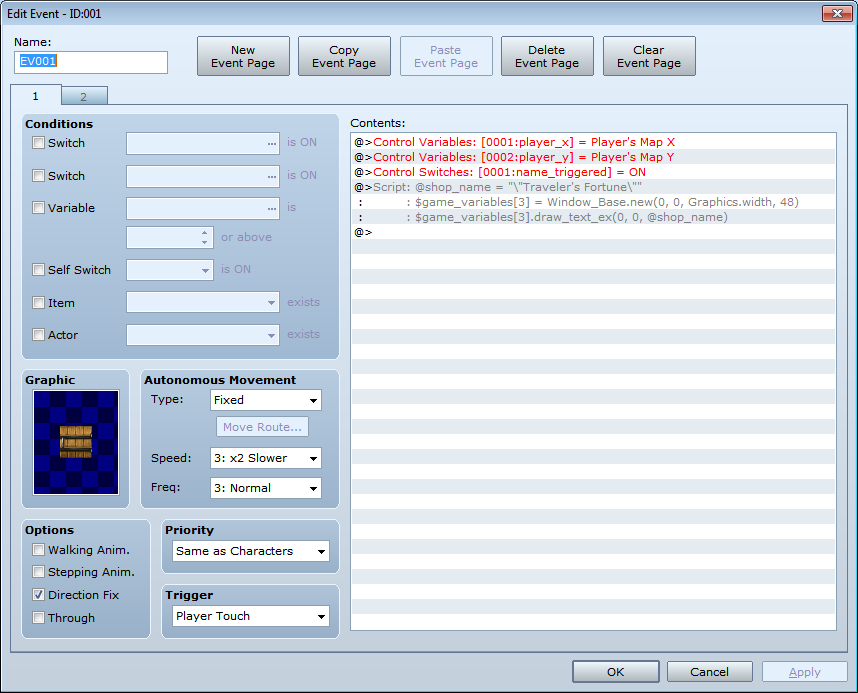
To complete this part add a Script Call event command (you can find it in the 3rd page). Script calls are really versatile and allow you to write pieces of code to be executed in your event. In our script call we need another variable to store our window. In my example it will be variable 3. To create a window we need something like this:
@shop_name = "Your Shop Name"
$game_variables[3] = Window_Base.new(0, 0, Graphics.width, 48)
$game_variables[3].draw_text_ex(0, 0, @shop_name)
Where "Your Shop Name" can be anything you want but don't forget the quotation marks!
Example: "The Happy Unicorn"
IMPORTANT: if you want to use a different variable just change the "3" in the code with your variable ID. Don't forget to do it or it will use your variable 3.
If you did everything right your event first page should look like this:
Third step: handling our window
Note: if you don't want to use a common event you can use another event in the map but then you have to put one in each map with at least a popup window.
First of all move to your second page and before every other command add a Control Switch command to turn off the switch you used (in my case it's switch 1). Immediatly after that add a Script Call command to dispose our window and reset our variable 3. To do that you have to write this in your script call:
$game_variables[3].dispose
$game_variables[3] = 0
IMPORTANT: change the number 3 to be the ID of the variable you used for your window!
At this point your second page should look like this:
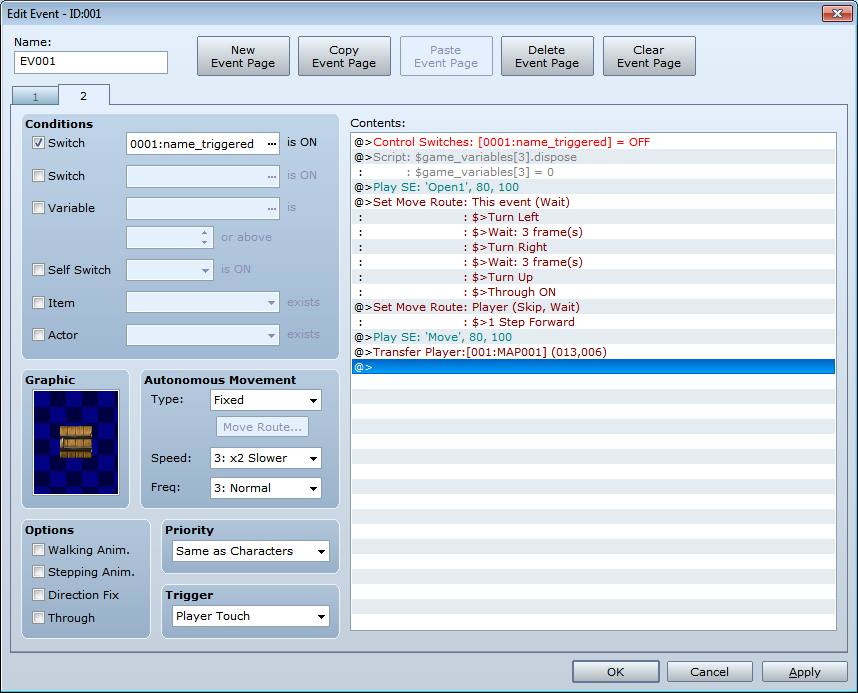
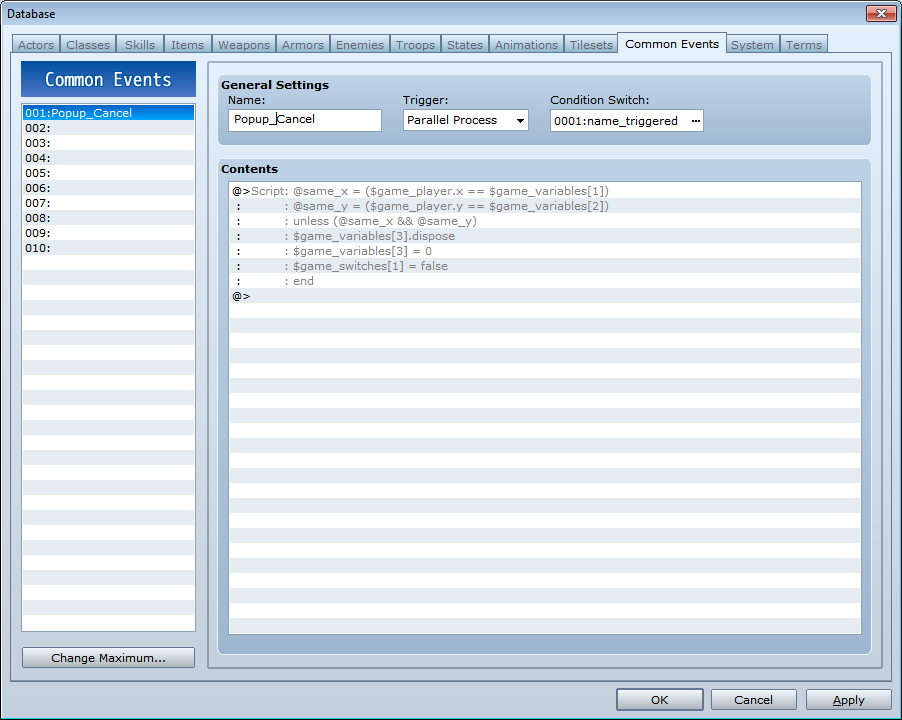
Since your second page is now fine let's move to our common event. Press F9 and select the Common Events tab, then create a new one and set its Trigger to "Parallel Process" and its Condition Switch to be the switch you turned on in your door event first page (in my case it's switch 1).
Once your common event is ready add a Script Call command and write this (with opportune changes):
@same_x = ($game_player.x == $game_variables[1])
@same_y = ($game_player.y == $game_variables[2])
unless (@same_x && @same_y)
$game_variables[3].dispose
$game_variables[3] = 0
$game_switches[1] = false
end
IMPORTANT: The variable in the first line should be the one you used to store player's map X, the one in the second line should be the one you used to store player's map Y while the other one should be the one you used for your window. The switch is the switch you turned on in your door event first page.
What's this event for?
This event checks the player position every frame and compares the new coordinates with the one we stored in our variables. If they are the same it does nothing, if they somwhow changed (the player moved) it disposes the popup window and resets both the variable we used for our window and the switch we used to tell that the window was being shown.
If you followed my steps then your event looks like this:
Good job!
Now you have your popup window, test your game and see how it looks.
One thing you might find uncomfortable is the fact that the delay between when the window is shown and when the player activates the door is too short. If you want to increase it just put a wait command at the bottom of your door first page (5 or 10 frames should be ehough).
Thank you for reading and have fun with your popup windows!
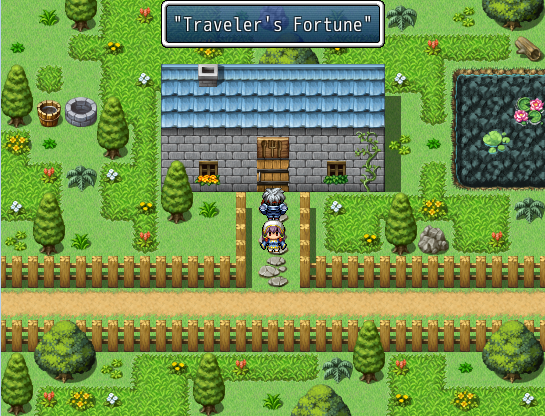
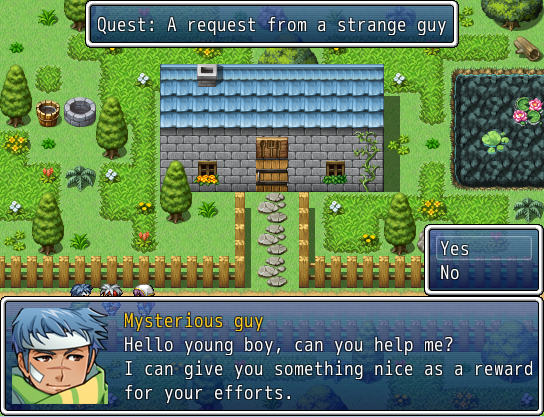
P.S. These are very basic windows. you can achieve something different using the same method. Here are few samples.
Resized door name:
Quest Dialogue Popup:
Downloads / Referenced Files
RPG Maker Web attachments are mirrored locally when available. Other external links remain hosted by their original creator or third-party service.
- Local mirror: 32735-5fcbfd859e08831f908fe1c37edd0833.png
SHA-256:534e40e187dfd99e0cd026d5a15795679564f055ccbba2a2759cd9327826390a
Original attachment URL: https://forums.rpgmakerweb.com/attachments/shop_name-png.53027/ - Local mirror: 32737-85edc85c2d25e9822ac33b93abecd2fc.png
SHA-256:fd2b1fdb26da4943dba32c8201cefaeaed94f77749d3b2d06985dc5599af29fa
Original attachment URL: https://forums.rpgmakerweb.com/attachments/game_data-png.53029/ - Local mirror: 32736-c6899eb22673cc3f8c7aefa03f534280.png
SHA-256:f7bcb7be33396d865b3eca99e072c25c1425023226b9a8b402be120b1babc4e3
Original attachment URL: https://forums.rpgmakerweb.com/attachments/control_variables-png.53028/ - Local mirror: 32734-8c4429fd86823d3ba25ca17f1bf82987.png
SHA-256:5ea2d30025a3a0dda2c282697d8ada89c08e13a1d7a597d1338326134a192077
Original attachment URL: https://forums.rpgmakerweb.com/attachments/doow_1stpage-png.53024/ - Local mirror: 32738-1791049929e9a28608de5a4bdba10d3e.png
SHA-256:e73ed132150bbdc12a78771e52f6e3a06a4f35cb1df8dc224b2a80d0d6ff2086
Original attachment URL: https://forums.rpgmakerweb.com/attachments/doow_2ndpage-png.53030/ - Local mirror: 32739-a0202814771b1c8fa4808671f5631f6b.png
SHA-256:2f6a3ece3e2e01d9180250bc5f997d1277ddeb1aecff5849fb3d6b5761656f4c
Original attachment URL: https://forums.rpgmakerweb.com/attachments/popup_cancel_parallel_process-png.53031/ - Local mirror: 32742-c88f5fbb89e4f130052f3a0649b8e68f.png
SHA-256:6710f284d305b9bfed69bda702184b7af5e337f33027f014acb4040e59dd0158
Original attachment URL: https://forums.rpgmakerweb.com/attachments/shop_name_resized-png.53035/ - Local mirror: 32741-d446f1909b7fe8817e68c742a433f050.png
SHA-256:6eefc0f6970b26ab0c0c9cc7908c7c37e58f33aec7100f94615a98824b63128a
Original attachment URL: https://forums.rpgmakerweb.com/attachments/quest_popup-png.53033/
Referenced Images / Attachments
Creator Claims / Removal
If you are the original creator and want this listing reassigned, edited, or removed, join BMMPlay and contact the moderators with proof that matches the original RPG Maker Web profile, linked GitHub, itch.io page, or another public creator identity.
Replies (0)
No replies yet.
Topic Summary
Loading summary...