public

Rpg Maker Developers Group

Simple enough for a child, powerful enough for a developer

2 Followers

MZEli Self Variables - Set self variables to events and use it anywhere!

BMM Archive · July 15, 2026

Preserved forum archive. This topic stores the original first post and locally mirrored RPG Maker Web attachments when available. It is posted by the BMMPlay archive account, not by the original creator.

Original Source

  • Original title: Eli Self Variables - Set self variables to events and use it anywhere!
  • Original author: Eliaquim
  • Original date: February 9, 2021
  • Source thread: https://forums.rpgmakerweb.com/threads/eli-self-variables-set-self-variables-to-events-and-use-it-anywhere.133231/
  • Source forum path: Game Development Engines > RPG Maker Javascript Plugins > JS Plugin Releases (RMMZ)

Summary

{ "lightbox_close": "Close", "lightbox_next": "Next", "lightbox_previous": "Previous",

Archived First Post

KaUIPFD.png

Author: Hakuen Studio

Introduction

Keeping track of a lot of different variables can let you more sensitive to making a mistake. That's why self variables come in handy!
It works like self switches, but you can use numbers instead of just true/false(ON/OFF). And just use one variable in a lot of events!

Features
  • Add self variables to events.
  • These self variables are persistent across the map.
  • Can use plugin command to change the self variable of other events/maps.
  • Integration with the default event commands!
  • Work on the conditions tab of an event page.

Detailed tutorial on steam

How to use
After installing the plugin, the only thing you need to do is name a game variable like this:
SV: your variable name here.
Sv name.JPG


It must start with "SV:" (It is case sensitive, so set the SV upper case).

Now, you have three ways to manipulate the self variable values:

♦ Script Calls ♦

● Getting self variable values:
  • Current event -> this.selfVariableValue(varId) OR this.getSv(varId)
  • Other events/map -> $gameVariables.selfValue([mapId, eventId, varId])
● Changing self variable values:
  • Current event -> this.setSelfVariableValue(varId, value) OR this.setSv(varId, value)
  • Other events/maps -> $gameVariables.setSelfValue([mapId, eventId, varId], value)
♦ Plugin Command(MZ only) ♦

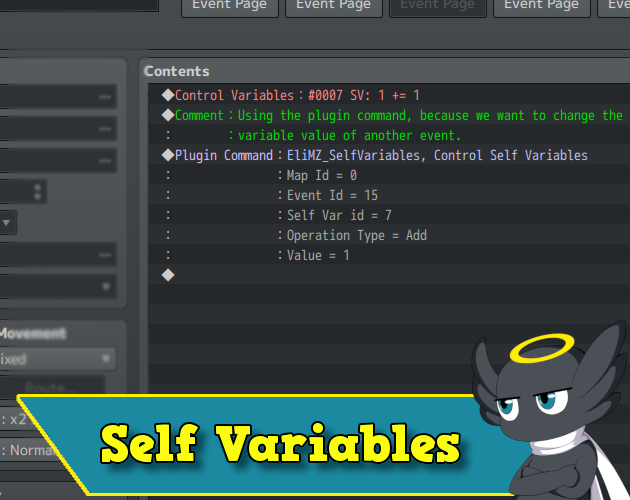
You can change the self variables value using the plugin command.
sv plugin command.JPG


NOTE¹: If you want to show the value of a self variable in a text like \v[id], you will need the Eli Escape Codes, where you set up an escape code of your choice to get their values. By default is \sv[id].

How to use the super integration feature
The super integration is a feature that lets you operate the self variables using the default event commands. In another word, using the editor.

♦ Default event command ♦

Self Variables are stored just like Self Switches. This means, that they mix Map Id, Event Id, and Variable Id to build a key that will hold the value of the self variable.
  • MapId, EventId, VarId = value
So, if Event Id 6 of Map Id 114 has a Self Variable Id 2 with a value of 345, the game will save this like that:
  • 114, 6, 2 = 345
So, with that in mind, if the variable has the "SV:" tag on their name, any event command that let you use a variable, will operate the self variable instead of the default game variable(Control Variable, Conditional Branch, etc.).

To do that, they will need a Variable Id, Map Id, and Event Id to access a Self Variable value.
The Var Id will get from the event command itself, by the user.
The Map Id and Event Id will be automatically got by the plugin and combined to find the value of a self variable.

But if in case you want to check the value of a self variable of another event? Or even in another map?

Then you must set a variable id into the Target Variables located on the plugin parameter.
sv parameter.JPG

These Target Variables will let you change the Event Id and Map Id that was being set automatically when you use the event commands.

You just need to change their values to something above 0 and they will set a Target Map Id and Event Id.
Set their value to 0 if you want to restore the normal behavior.
* They also must be set as Self Variables.
sv targets.JPG


They will work on any event command that uses variables!

Terms of Use
Update Log

Features Mentioned

  • Add self variables to events.
  • These self variables are persistent across the map.
  • Can use plugin command to change the self variable of other events/maps.
  • Integration with the default event commands!
  • Work on the conditions tab of an event page.
  • Detailed tutorial on steam
  • Steam Community :: Guide :: Native Self Variables (MV & MV)
  • This guide will teach you how to use the Self Variable plugin from Hakuen Studio. The main difference of this self variable plugin to the others, is that this one is totally integrated with the event
  • steamcommunity.com

Downloads / Referenced Files

Log in to download

Log in, then follow the RPG Maker Developers Group to see these download links.

Log in to download

License / Terms Note

​Terms of Use Update Log Hakuen Studio Self Variables for RPG Maker MZ by Hakuen Studio Fully integrated Self Variables with the default event commands!

Referenced Images / Attachments

hakuenstudio.itch.io
Creator Claims / Removal

If you are the original creator and want this listing reassigned, edited, or removed, join BMMPlay and contact the moderators with proof that matches the original RPG Maker Web profile, linked GitHub, itch.io page, or another public creator identity.

#rmmz#plugin-archive

Replies (0)

No replies yet.

0 replies 1 view

Log in to reply.

User Avatar